
Seat Ibiza (6F) 2017-2026 Owner's Manual: Wired and wireless connections
USB connection
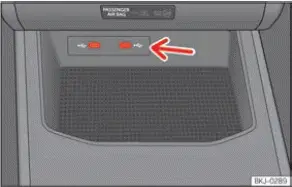
Fig. 128 Centre console: USB input.
Depending on the equipment fitted to the Seat Ibiza and the country in which the vehicle is supplied, different types of USB connections may be provided. The available USB interfaces can vary in their physical design and supported functions. A suitable connection may be used to connect compatible external devices to the infotainment system, including smartphones that require a USB data connection for supported Full Link technologies. When connecting a device, use a cable that matches the USB interface and supports the function you intend to use.
The USB port is located in the storage compartment area of the front centre console, as illustrated in Fig. 128. This position provides access to the connection point for compatible mobile devices and other supported USB equipment. Before connecting a device, identify the available port and make sure the plug is correctly aligned with the socket. Insert the connector carefully without forcing it, and position the cable so that it does not interfere with the operation of vehicle controls or the driver's movements.
Note Before switching the ignition on or off, disconnect any devices or accessories plugged into the Seat Ibiza USB ports. Changes in the vehicle's electrical supply during these operations may cause voltage fluctuations that could affect connected equipment. Unplugging external devices beforehand helps protect them against possible damage associated with these variations. This precaution applies to smartphones and other electrical equipment connected through the vehicle's USB interfaces.
 Android Auto
Requirements for Android Auto
Android Auto allows a compatible Android smartphone to connect to the Seat Ibiza infotainment system, making
supported phone applications and functions accessible th ...

See also:
Honda Civic Owners Manual. To Play Bluetooth’ Audio Files
1. Make sure that your phone is paired and
connected to the system.
Phone Setup
2. Select the Bluetooth’ Audio mode.
If the phone is not recognized, another HFLcompatible
phone, which is not compatible
for Bluetooth’ Audio, may already be
connected.
To pause or resume a file
Select ...
