



- Radio
- FM/AM radio
- USB (Universal Serial Bus) connection port
- iPod* player operation
- Bluetooth streaming audio
- Steering wheel switch for audio control
Radio Nissan Kicks Owner's Manual
When the ignition switch of your Nissan Kicks is in the ACC or ON position, press the PUSH
 (power)
button to activate the radio system. If you plan to listen to the radio while the engine is not running, place
the ignition in the ACC position to provide power to the audio system without starting the engine.
(power)
button to activate the radio system. If you plan to listen to the radio while the engine is not running, place
the ignition in the ACC position to provide power to the audio system without starting the engine.
Radio reception quality in the Nissan Kicks can vary depending on several external factors, including signal strength, the distance from the broadcasting tower, surrounding buildings, bridges, mountainous terrain, weather conditions, and other environmental influences. Temporary fluctuations in sound quality are generally caused by these factors and do not indicate a fault with the audio system.
Using a cellular phone in or near the vehicle may influence radio reception quality.
Radio reception
Your Nissan Kicks audio system incorporates advanced electronic circuitry engineered to improve radio reception quality and extend the effective listening range. These technologies help maintain clearer sound and more stable reception under a wide variety of driving conditions.
Even with modern equipment, FM and AM radio signals naturally possess characteristics that may affect reception quality while the vehicle is moving. These effects are common to all radio systems and should not be considered a malfunction of the Nissan Kicks audio equipment.
Reception conditions continuously change as the vehicle travels through different environments. Signal strength can vary significantly within only a few miles depending on terrain and surrounding structures.
Large buildings, valleys, tunnels, hills, transmission distance, and radio-frequency interference from nearby vehicles or electronic devices can reduce reception quality. Understanding these characteristics helps explain occasional changes in audio performance.
Certain mobile phones, wireless accessories, charging devices, or other portable electronics may generate interference that results in buzzing or unwanted noise through the Nissan Kicks speaker system.
Relocating the device, increasing the distance from the audio unit, or disconnecting the accessory may help reduce or eliminate the interference.
FM radio reception
Range: FM broadcasts typically provide coverage within approximately 25 - 30 miles (40 - 48 km). Monaural FM signals generally travel slightly farther than stereo broadcasts. External conditions may occasionally interfere with reception even when the station is located within the normal operating range. The strength of an FM signal decreases as the distance between the transmitter and the Nissan Kicks receiver increases. FM radio waves travel primarily in a line-of-sight pattern and share several characteristics with visible light, including the ability to reflect from surrounding objects.
Fade and drift: As the Nissan Kicks moves farther away from a broadcasting station, the radio signal may gradually weaken, causing the sound to fade or drift.
Static and flutter: Interference caused by large buildings, elevated terrain, reflective surfaces, or antenna orientation may introduce static noise or fluttering audio effects. These conditions become more noticeable as the distance from the broadcasting source increases.
In some cases, reducing the treble setting may help minimize the perceived effect of static or signal flutter.
Multipath reception: FM signals often bounce off buildings, mountains, bridges, and other structures. As a result, both direct and reflected signals may arrive at the Nissan Kicks receiver simultaneously. When this occurs, the signals can partially cancel one another, causing temporary distortion, flutter, or brief interruptions in audio playback.
AM radio reception
Because AM signals operate at lower frequencies, they can bend around obstacles and travel along the ground more effectively than FM signals. In addition, AM radio waves may reflect from the ionosphere and return to the Earth's surface. These unique characteristics allow AM stations to cover greater distances but also make them more vulnerable to certain types of interference.
Fading: This condition may occur when the Nissan Kicks passes beneath highway overpasses, through dense urban areas, or near clusters of tall buildings. Signal fading can also appear during periods of atmospheric disturbance, even when no physical obstacles are present.
Static: AM broadcasts are particularly sensitive to electrical interference generated by thunderstorms, power transmission lines, illuminated signs, industrial equipment, and traffic control systems.
Audio operation precautions
MP3 or WMA terms
- MP3 - MP3 stands for Moving Picture Experts Group Audio Layer 3 and remains one of the most widely used compressed digital audio formats. In the Nissan Kicks audio system, MP3 files provide excellent sound quality while significantly reducing storage requirements compared to uncompressed audio. Compression ratios of approximately 10:1 are possible with minimal audible loss of quality. This efficiency is achieved by removing portions of the audio spectrum that are generally beyond normal human hearing.
- WMA - Windows Media Audio (WMA)* is a compressed audio format developed by Microsoft as an alternative to MP3 technology. The WMA codec can often achieve higher compression rates while maintaining similar sound quality, allowing more music files to be stored on compatible media devices used with the Nissan Kicks infotainment system.
- Bit rate - Bit rate refers to the amount of digital information processed each second within an audio file. Higher bit rates generally provide improved sound quality, although they also result in larger file sizes. The overall listening experience is influenced by the bit rate selected during audio encoding.
- Sampling frequency - Sampling frequency defines how many times per second an analog audio signal is measured and converted into digital data. Higher sampling frequencies can preserve more detail from the original recording and contribute to improved playback quality.
- Multisession - Multisession is a recording method that allows data to be written to a storage medium on multiple occasions. A disc recorded only once is considered a single-session disc, while additional recording sessions create a multisession disc. Compatibility may vary depending on the media and recording method used.
- ID3/WMA Tag - The ID3 or WMA tag contains descriptive information embedded within an audio file. These tags can include the song title, artist name, album title, genre, track number, recording year, playback duration, and encoding details. When supported media is used, the Nissan Kicks audio system can display this information directly on the screen, making it easier to browse and organize your music collection.
For drivers who frequently travel long distances, the Nissan Kicks audio system is designed to deliver consistent performance across a wide variety of listening sources, helping maintain clear entertainment and information access throughout the journey. Modern signal processing technology contributes to a more enjoyable in-vehicle listening experience.
ID3 tag information is shown on the artist and song title line of the display, allowing the Nissan Kicks audio system to present track details in a clear and convenient way when the file contains properly stored metadata.
Windows and Windows Media are registered trademarks and trademarks in the United States of America and other countries of Microsoft Corporation of the USA.
USB (Universal Serial Bus) connection port
WARNING
Do not connect, disconnect, or operate a USB device while driving. This can take your attention away from the road. If the driver becomes distracted, control of the Nissan Kicks may be lost, which can lead to a collision or serious injury.
CAUTION
- Do not force a USB device into the USB port. Inserting the device at an angle or upside down may damage the port. Always confirm that the USB device is aligned correctly before connecting it.
- Do not pull on the USB port cover (if so equipped) when removing a USB device. This may damage both the port and the cover.
- Do not leave the USB cable in a place
where it may be pulled accidentally.
A sudden pull on the cable may damage the USB port or the connector.
The Nissan Kicks is not supplied with a USB device.
USB memory devices, compatible cables, or media players should be purchased separately when required.
The audio system in the Nissan Kicks cannot format USB devices. If formatting is necessary, use a personal computer and follow the instructions for the specific device.
In certain regions, the USB device connected for front-seat use may play audio only, without image or video display, due to local regulations. This can apply even when the vehicle is parked.
The Nissan Kicks audio system supports a range of USB memory devices, USB hard drives, and iPod players. However, compatibility is not guaranteed for every device, file structure, or software version.
- USB devices divided into multiple partitions may not play correctly or may not be recognized by the system.
- Some characters used in languages such as Chinese, Japanese, Korean, or other non-Latin scripts may not display properly on the vehicle screen. For more reliable display of file names and track information, English language characters are recommended when preparing a USB device for the Nissan Kicks.
General notes for USB use
- For correct handling, storage, and care of a USB device, refer to the owner information supplied by the device manufacturer.
Notes for iPod use
iPod is a trademark of Apple Inc., registered in the U.S. and other countries.
- If the iPod is not connected properly, a checkmark may appear and disappear repeatedly on the display. Make sure the connector is fully and correctly inserted.
- Audiobooks may not play in exactly the same order as they appear on the iPod.
- Large video files may cause slower iPod response. The center display in the Nissan Kicks may temporarily go black, but normal operation should resume shortly afterward.
- If an iPod automatically selects large video files while shuffle mode is active, the vehicle center display may briefly black out and then recover.
iPod* player
- Some characters used in languages such as Chinese, Japanese, and other non-Latin scripts may not appear correctly on the Nissan Kicks center screen. English or Spanish language characters are recommended for better compatibility with the display.
- Large video podcast files may slow the response of the iPod. The vehicle center display may momentarily black out before returning to normal operation.
- If the iPod automatically selects large video podcast files during shuffle playback, the Nissan Kicks center display may briefly go dark and then recover.
- An incorrectly connected iPod may cause a checkmark to flicker on and off. Always make sure the iPod cable is properly seated in the device port.
- Audiobooks may not be played in the same sequence as shown on the iPod.
- Be careful to avoid the following conditions, as they may damage the cable and cause loss of function:
- Bending the cable too sharply, especially beyond a radius of 1.6 in (40 mm).
- Twisting the cable excessively, including rotations of more than 180 degrees.
- Pulling the cable with force or dropping it.
- Forcing the iPod cable connector into the device port.
- Closing the center console lid on the cable or connectors.
- Storing sharp-edged objects in the same compartment where the cable is kept.
- Allowing liquid to spill onto the cable or its connectors.
- Do not connect the cable to the iPod if the cable or connectors are wet, as this may damage the iPod or affect playback through the Nissan Kicks audio system.
- If the cable or connectors have been exposed to water, allow them to dry completely before reconnecting the iPod. A drying period of approximately 24 hours is recommended.
- If the connector has been exposed to liquids other than water, residue left after evaporation may create a short between connector pins. In this situation, replace the cable to avoid damaging the iPod or losing audio function.
- If the cable is damaged, including cut insulation, cracked connectors, liquid contamination, dust, dirt, or debris inside the connector, do not use it. Replacing the cable with a new one through a NISSAN dealer is recommended to maintain proper operation.
- When the cable is not used for a long period, store it in a clean, dry, dust-free location at room temperature and away from direct sunlight.
- Use the cable only for its intended purpose inside the vehicle. Proper cable care helps the Nissan Kicks audio system maintain stable connection quality and reliable media playback.
*iPod is a trademark of Apple Inc., registered in the U.S. and other countries.
Bluetooth streaming audio
- Some Bluetooth audio devices may not be detected by the Nissan Kicks in-vehicle audio system. Compatibility can depend on the device model, software version, supported profiles, and Bluetooth settings.
- Before Bluetooth audio can be used, a compatible Bluetooth audio device must be paired and connected wirelessly to the Bluetooth module in the Nissan Kicks.
- The way Bluetooth audio is operated may differ depending on the device being used.
Before using the device with this system, make sure you understand its basic audio controls, pairing menu, and connection behavior.
- Bluetooth audio playback may pause or stop in the following situations:
- When a call is received through the Bluetooth Hands-Free Phone System.
- When the system is checking or restoring the connection to the hands-free phone.
- Do not place the Bluetooth audio device far from the in-vehicle Bluetooth module or in an area surrounded by metal objects. Poor placement can reduce sound quality, weaken the wireless signal, or interrupt playback in the Nissan Kicks.
- While an audio device is connected through Bluetooth wireless communication, its battery may discharge faster than normal because the device is actively transmitting audio data.
- This system supports Bluetooth Audio Distribution Profile functions, including A2DP and AVRCP, allowing compatible devices to stream audio and, when supported, respond to basic playback commands from the Nissan Kicks audio controls.
 BLUETOOTH
is a
trademark owned by
Bluetooth SIG, Inc.
BLUETOOTH
is a
trademark owned by
Bluetooth SIG, Inc.
and licensed to Panasonic.
FM/AM radio Nissan Kicks 2026
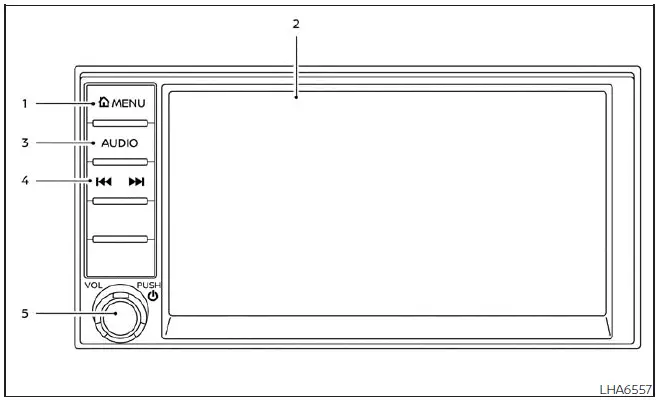
-
 MENU
button
MENU
button
- Display screen
- AUDIO button
-
 ,
,
 SEEK / TRACK buttons
- VOL (volume) knob/PUSH
 (power)
button
(power)
button
Audio main operation
VOL (volume) knob / PUSH
 (power) button
Place the ignition switch in the ACC or ON position, then press the PUSH
 (power)
button while the system is off. The Nissan Kicks audio system will return to the source that was playing before
shutdown, such as radio, AUX, Bluetooth audio, USB, or iPod.
(power)
button while the system is off. The Nissan Kicks audio system will return to the source that was playing before
shutdown, such as radio, AUX, Bluetooth audio, USB, or iPod.
To switch the system off, press the PUSH
 (power)
button.
(power)
button.
Turn the VOL control knob to raise or lower the sound level.
The Nissan Kicks may be equipped with Speed Sensitive Volume. When this feature is active, the audio level adjusts automatically as vehicle speed changes, helping music and radio remain easier to hear as road noise increases or decreases.
 MENU
button
MENU
button
Press the
 MENU
button to open
the
Menu screen. Touch the "Settings" key on the display, then select the "Sound" key to adjust audio preferences.
MENU
button to open
the
Menu screen. Touch the "Settings" key on the display, then select the "Sound" key to adjust audio preferences.

Bass, treble, balance, fade, and Speed Sensitive Volume can be adjusted by touching the "-"/"+", "L"/"R", or "R"/"F" keys. These settings allow the Nissan Kicks driver to tune the sound more precisely for the cabin layout and listening preference.
AUDIO button
Press the AUDIO button to display the audio screen. If this button is pressed while another screen is open, the system returns to the most recently used audio source and begins playback.
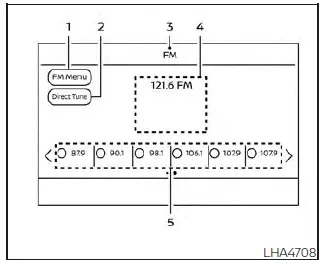
AM/FM radio screen
1. "AM Menu" / "FM Menu" key Touch this key to open the radio menu screen for the selected band.
2. "Direct Tune" (if so equipped) Touch this key to manually enter a desired radio station frequency.
3. Audio source indicator Shows the currently selected audio source.
4. Reception information display Displays available radio information, such as station frequency, station name, and related broadcast details when supported.
5. Preset list To listen to a stored station, touch the desired station from the preset list. If the " <" or " >" keys are shown, touch them to move through the available preset list.
AM radio operation
Press the
 MENU button
and touch
the
"AM" key, or press the AUDIO button and choose AM from the bottom Launch Bar to open the AM radio screen.
MENU button
and touch
the
"AM" key, or press the AUDIO button and choose AM from the bottom Launch Bar to open the AM radio screen.
If another source is playing when the "AM" key is touched, that source turns off automatically and the Nissan Kicks audio system begins playing the last AM station used.
AM Menu
Touch the "AM Menu" key to open the available AM Menu options:
- SCAN: To scan available AM stations, touch the "AM Menu" key on the radio screen and then touch "SCAN". The tuner moves from lower to higher frequencies and pauses at each station for several seconds. Touch "SCAN" again during that pause to stop scanning and remain on the current station.
- Refresh: Touch the "Refresh" key to update the station list shown on the right side of the AM Menu screen.
 (SEEK/TRACK) buttons
Press the
 or
or
 buttons to
tune
from low to high or from high to low frequencies. The tuner stops at the next available broadcasting station.
buttons to
tune
from low to high or from high to low frequencies. The tuner stops at the next available broadcasting station.
Direct Tune (if so equipped)
Touch the "Direct Tune" key to open the Direct Tune menu and enter a station frequency manually.
1 to 6 station memory operations
Up to six AM stations can be saved in the preset list for quick access.
1. Select the AM radio band.
2. Tune to the station you want to store.
3. Touch and hold one of the preset numbers in the preset list.
The station information, such as frequency, will appear in the preset list after it has been stored.
To choose a preset station, briefly press
 or
or
 on the steering wheel
or touch the preferred station directly from the radio screen.
on the steering wheel
or touch the preferred station directly from the radio screen.
FM radio operation
Press the
 MENU button
and touch
the
"FM" key, or press the AUDIO button and select FM from the lower Launch Bar to open the FM display screen.
MENU button
and touch
the
"FM" key, or press the AUDIO button and select FM from the lower Launch Bar to open the FM display screen.
If another audio source is active when the "FM" key is touched, that source stops automatically and the Nissan Kicks audio system begins playing the last FM station used.
The FM stereo indicator (STEREO) appears on the screen when FM stereo reception is available.
If the stereo broadcast signal becomes weak, the radio automatically switches from stereo reception to monaural reception to help maintain a more stable sound.
FM Menu
Touch the "FM Menu" key to open the FM Menu screen options:
- SCAN: To scan FM stations, touch the "FM Menu" key on the radio screen and then touch "SCAN". The radio tunes from lower to higher frequencies and pauses at each broadcasting station for several seconds. Touching "SCAN" again during this pause stops the scan and keeps the radio tuned to that station.
- Refresh: Touch the "Refresh" key to update the station list displayed on the right side of the FM Menu screen.
- RDS Info: When supported by the broadcast, radio station details and song information can be shown on the FM display screen.
 (SEEK/TRACK) buttons
Press the
 or
or
 buttons
to tune
from low to high or from high to low frequencies and stop at the next broadcasting station.
buttons
to tune
from low to high or from high to low frequencies and stop at the next broadcasting station.
1 to 12 station memory operations
Up to 12 FM stations can be registered in the preset list, making it easier to switch between favorite stations while driving the Nissan Kicks.
1. Select the FM radio band.
2. Tune to the station you want to save.
3. Touch and hold one of the preset numbers in the preset list.
The station information, such as frequency, will then appear in the preset list.
To listen to a stored FM station, briefly press
 or
or
 on the steering wheel
or touch the desired station from the preset list on the radio screen.
on the steering wheel
or touch the desired station from the preset list on the radio screen.
Auxiliary (AUX) devices operation (if so equipped)
Connecting auxiliary devices
Connect an AUX device to the AUX input jack located on the center console below the heater and air conditioner controls.
The AUX input jack accepts standard analog audio signals from devices such as a portable cassette player, CD player, MP3 player, or phone.
Insert a 1/8 in (3.5 mm) stereo mini plug into the audio input jack. If a mono plug cable is used, the audio output may not operate correctly or may play through only part of the speaker system.
Activation and playing
Turn on the AUX device. Connect the AUX cable to both the device and the AUX input jack. Then select AUX mode from the audio source menu screen or press the Source button on the steering wheel. Once connected, the Nissan Kicks plays sound from the external device through the vehicle speakers.
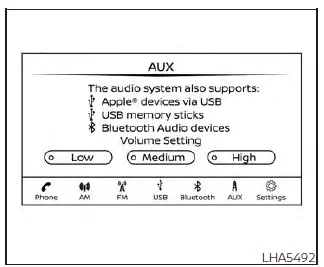
AUX screen
- Audio source indicator
Shows that AUX is the source currently being played. - "Volume Setting" keys
Touch one of the keys to choose the output gain level: Low, Medium, or High. This helps match the external device volume to the Nissan Kicks audio system. - AUX from Launch Bar
Touch this key to switch from another audio source to AUX.
Additional features
For details about compatible Apple device playback, see "iPod player operation" for the iPod player functions available with this system.
For information about external storage and supported media playback, see "USB (Universal Serial Bus) connection port" for the USB connection port used with this system.
For wireless music playback, see "Bluetooth streaming audio" for the Bluetooth audio interface available in the Nissan Kicks.
Microsoft (WMA) Obligation of Labeling
Additional Obligation of Labeling
This product is protected by certain intellectual property rights of Microsoft Corporation and third parties. Use or distribution of such technology outside of this product is prohibited without a license from Microsoft or an authorized Microsoft subsidiary and third parties.
USB (Universal Serial Bus) connection port Nissan Kicks
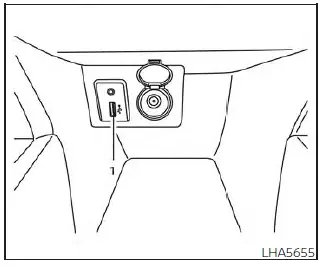
- Type-A.
Connecting a device to the USB connection port
WARNING
Do not connect, disconnect, or operate a USB device while driving. This action can draw your attention away from the road. If the driver is distracted, control of the Nissan Kicks may be lost, which can result in an accident or serious injury.
CAUTION
- To help prevent damage or loss of function when using a USB device, follow the precautions below carefully.
- Do not force a USB device into the USB port. Inserting the USB device at an angle or upside down may damage the port. Check the connector orientation and make sure the USB device is seated correctly in the port.
- Do not pull on the USB port cover (if so equipped) when removing the USB device. This may damage the port, the cover, or both.
- Do not leave the USB cable where it may
be pulled accidentally.
A sudden pull can damage the port, the connector, or the cable.
NOTE:
For stable connection quality, use good-quality manufacturer cables sold separately. A USB Type-A to USB Type-C adapter, or a USB Type-C to USB Type-A adapter, may be used when needed, although compatibility and performance can vary by device, cable, and adapter.
For safe handling and proper care, refer to the owner information supplied by the device manufacturer before connecting the device to the Nissan Kicks audio system.
The USB port is positioned on the center console below the heater and air conditioner controls. Insert the USB device into the connection port gently and straight, without twisting the connector.
When a compatible storage device is connected, supported audio files stored on the device can be played through the Nissan Kicks audio system.
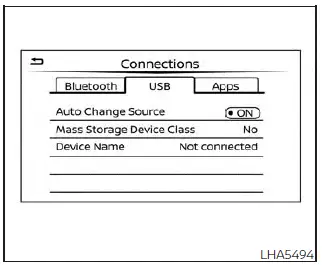
USB connections screen
Press the
 MENU button and
touch
the
"Connections" key, or touch the "Settings"
key and then select "Connections" to adjust USB-related settings.
MENU button and
touch
the
"Connections" key, or touch the "Settings"
key and then select "Connections" to adjust USB-related settings.
- Auto Change Source
Touch "ON" or "OFF" to choose whether the Nissan Kicks audio system should automatically switch sources when a USB memory device or iPod is connected through a USB cable.
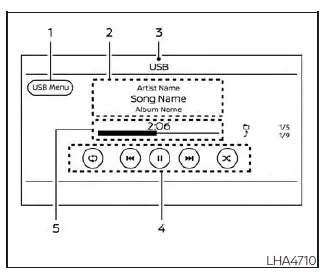
USB screen
- "USB Menu" key
Touch this key to open the USB Menu screen. - Track information
Displays available media details such as song name, artist name, and album name when this information is included in the audio file. - Audio source indicator
Shows the currently selected audio source. - USB operation keys
Touch these keys to control USB playback functions. - Play time and progress bar
The current track play time is displayed.The progress bar shows how far the current track has played.
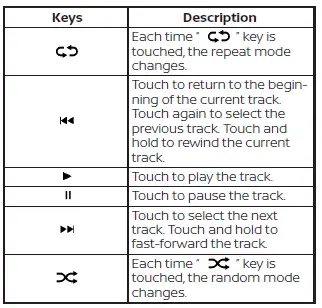
USB operation keys
Touch the on-screen keys to control USB playback functions directly from the Nissan Kicks display.
USB memory device player operation
Activation and playing
Connecting a USB memory device to the port can start playback automatically if the device and file format are compatible.
USB memory playback can also be started by touching the "USB" key on the Menu screen or by selecting USB from the Launch Bar.
To pause playback from the USB memory device, touch the "
 " key. To continue
playback,
touch the "
" key. To continue
playback,
touch the "
 " key.
Skipping tracks
To move between tracks, press the
 or
or
 buttons on the control panel, or touch the
"
buttons on the control panel, or touch the
"
 " or "
 "
keys on the screen repeatedly
until the preferred track is selected.
"
keys on the screen repeatedly
until the preferred track is selected.
NOTE:
Depending on the playback condition, returning to the previous track may require pressing the button or touching the key twice.
A single press may restart the current track from the beginning instead of selecting the previous track.
Fast-forwarding/rewinding
To rewind or fast-forward the current track, press
and hold the
 or
or
 buttons on
the
control panel, or touch and hold the "
buttons on
the
control panel, or touch and hold the "
 "
or "
"
or "
 " keys
on the screen.
" keys
on the screen.
Changing play mode
Repeat mode
Touch the "
 " key on the
USB
screen to
change the repeat mode.
" key on the
USB
screen to
change the repeat mode.
The following modes are available:
All: repeats all available tracks.
1 Folder: repeats the selected folder or sub-folder.
1 Track: repeats the current track.
Random mode
Touch the "
 " key on
the screen
to
change random playback as follows:
" key on
the screen
to
change random playback as follows:
"
 " is not
highlighted: Random
off
" is not
highlighted: Random
off
"
 " highlighted:
Random on
" highlighted:
Random on
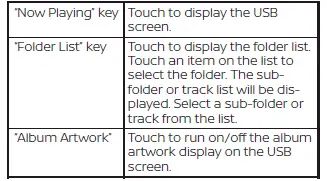
USB menu
Touch the "USB Menu" key on the USB screen to display the USB Menu screen. From this menu, the Nissan Kicks driver can browse connected media more conveniently and manage USB playback without leaving the main audio interface.
iPod* player operation Nissan Kicks
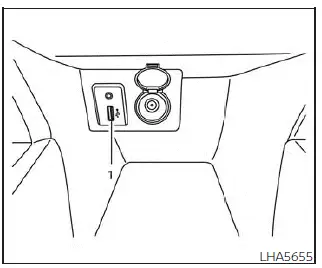
- Type-A.
Connecting iPod
WARNING
Do not connect, disconnect, or operate the USB device while driving. This can take attention away from the road. If the driver becomes distracted, control of the Nissan Kicks may be lost, which can result in an accident or serious injury.
CAUTION
- Do not force the USB device into the USB port. If the connector is inserted at an angle or upside down, the port may be damaged. Always check that the USB device is aligned correctly before connecting it.
- Do not pull on the USB port cover (if so equipped) when removing the USB device from the port. This could damage the cover, the port, or both parts.
- Do not leave the USB cable where it can
be pulled unintentionally.
A sudden pull may damage the port or the cable connector.
NOTE:
For stable operation, use good-quality manufacturer cables sold separately. A USB Type-A to USB Type-C adapter, or the opposite adapter, may work with some devices, but connection quality and compatibility can vary.
For more precise instructions about safe handling, charging, and cable care, refer to the owner information supplied by the device manufacturer.
To connect an iPod to the Nissan Kicks and control it through the audio system controls and display screen, use the USB connection port located on the center console below the heater and air conditioner controls. Connect the iPod-specific end of the cable to the iPod, then insert the USB end into the vehicle USB connection port. If the iPod supports charging through USB, its battery will charge while it is connected and the ignition switch is in the ON position.
While the iPod is connected to the Nissan Kicks, operation is handled through the vehicle audio controls instead of directly through the device.
To disconnect the iPod, first remove the USB end of the cable from the vehicle USB connection port, then disconnect the cable from the iPod.
* iPod is a trademark of Apple Inc., registered in the U.S. and other countries.
Compatibility
The following models are compatible with this system:
- iPhone 13 Pro Max
- iPhone 13 Pro
- iPhone 13
- iPhone 13 mini
- iPhone 12 Pro Max
- iPhone 12 Pro
- iPhone 12 mini
- iPhone SE 2G
- iPhone 11 Pro Max
- iPhone 11 Pro
- iPhone 11
- iPhone XR
- iPhone XS Max
- iPhone XS
- iPhone X
- iPhone 8 Plus
- iPhone 8
- iPhone 7 Plus
- iPhone 7
- iPhone SE
- iPhone 6s Plus
- iPhone 6s
- iPhone 6 Plus
- iPhone 6
- iPhone 5s
- iPod touch (7th generation)
- iPod touch (6th generation)
* Some iPod functions may not operate fully through the Nissan Kicks audio system, depending on the device model, software version, cable condition, and available media content.
Make sure the iPod firmware is updated to the required version for proper compatibility. The Lightning connector works with iPhone (5 through 11) and iPod touch (6th generation).
USB works with iPhone (5 through 11) and iPod touch (6th generation).
All Android devices with Android OS 5.0 or later are supported.
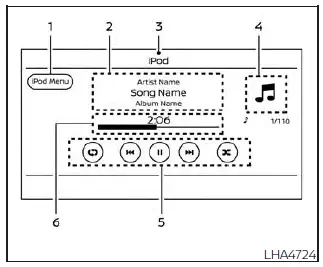
iPod screen
- "iPod Menu" key
Touch this key to open the iPod Menu screen. - Track information
Displays available track details, including song name, artist name, and album name when this information is stored in the media file. - Audio source indicator
Shows the currently selected audio source. - Album artwork
Album artwork is displayed when available and when the related setting is turned on. - iPod operation keys
Touch these keys to control iPod playback functions through the Nissan Kicks display. - Play time and progress bar
The current track play time is displayed.
The bar shows the playback progress of the current track, making it easier to see how much of the song has already played and how much remains.
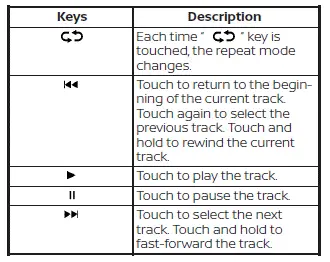
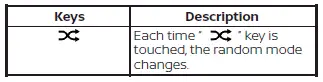
iPod operation keys
Touch the on-screen keys to control iPod playback functions through the Nissan Kicks audio display.
iPod memory device player operation
Activation and playing
Connecting an iPod to the Nissan Kicks with a USB cable activates iPod mode when the device is recognized by the audio system.
The iPod can also be played by touching the "iPod" key on the Menu screen or by selecting iPod from the Launch Bar. This allows the driver or front passenger to switch back to iPod playback without reconnecting the device.
Skipping tracks
To move between tracks, press the
 or
or
 buttons on the control panel, or touch the
"
buttons on the control panel, or touch the
"
 " or "
 "
keys on the screen repeatedly
until the desired track is selected.
"
keys on the screen repeatedly
until the desired track is selected.
NOTE:
Depending on playback status, returning to the previous track may require pressing the button or touching the key twice.
Pressing the button or touching the key once may only restart the current track from the beginning instead of moving to the previous track.
Fast-forwarding/rewinding
To rewind or fast-forward the current track, press
and hold the
 or
or
 buttons on the
control panel, or touch and hold the "
buttons on the
control panel, or touch and hold the "
 "
or "
"
or "
 " keys on the screen.
Changing play mode
Repeat mode
Touch the "
 " key on the iPod
screen
to change the repeat setting. The Nissan Kicks audio system offers the following repeat options.
" key on the iPod
screen
to change the repeat setting. The Nissan Kicks audio system offers the following repeat options.
No text displayed: repeat mode is turned off.
All: all available tracks are repeated.
One: the current track is repeated.
Random mode
Touch the "
 " key on the screen to
switch random playback on or off.
" key on the screen to
switch random playback on or off.
"
 " is not highlighted: Random off
"
 " highlighted: Random on
iPod Menu
Touch the "iPod Menu" key on the iPod screen to open the iPod Menu screen. From there, media browsing and playback selection can be handled directly through the Nissan Kicks display for a cleaner in-cabin listening experience.
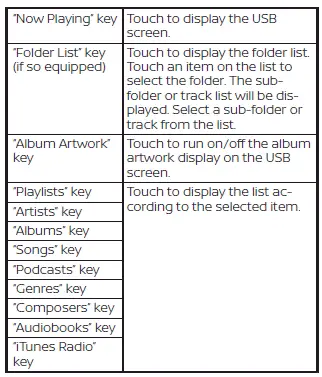
Bluetooth streaming audio Nissan Kicks 2026
If you have a compatible Bluetooth device that supports streaming audio through the A2DP profile, the device can be paired wirelessly with the Nissan Kicks audio system. After setup, the connection allows music, podcasts, and other supported audio content to play through the vehicle speakers without using a cable.
This wireless link lets the Nissan Kicks use the vehicle audio system as the playback output for the connected Bluetooth device, giving the cabin cleaner access to media stored on a phone or another compatible player.
To use Bluetooth streaming audio, touch the
 Bluetooth Icon on the Launch
Bar, then touch the "BT Audio" key.
Bluetooth Icon on the Launch
Bar, then touch the "BT Audio" key.
NOTE: A cellular phone should not be used while driving so full attention can remain on vehicle operation. If the device needs to be connected, see "Connecting procedure" and perform setup only when the Nissan Kicks is safely stopped.
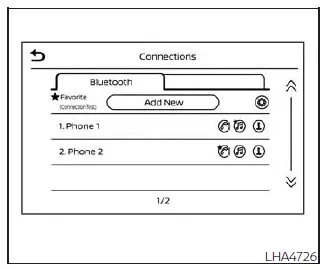
Connecting procedure
NOTE:
The connection procedure must be carried out while the vehicle is stationary. If the Nissan Kicks begins moving during setup, the procedure will be canceled for safety.
To connect a phone to the Bluetooth Hands-Free Phone System:
Manual Connecting Procedure
1. Select the "Settings" key on the Launch Bar.
2. Touch the "Connections" key on the screen.
3. Touch the Bluetooth tab, then touch "Add New".
4. Follow the instructions shown on the screen. If a PIN is displayed, operate the Bluetooth device to enter or confirm the PIN.
5. Confirm that the PIN is correct, then accept the connection on the device.
6. To open the Bluetooth settings menu, touch the "
 " key on the Connections
screen. The following options are
available:
" key on the Connections
screen. The following options are
available:

Automatic Connecting Procedure
If no phone is connected to the system,
press and hold the
 button on the
steering wheel for less than 1.5 seconds.
button on the
steering wheel for less than 1.5 seconds.
After the voice prompt, say "Add Phone". The system will announce that it is transferring to the add phone settings menu and will begin the pairing process. When a compatible phone is detected, a message with a PIN appears on the screen. Operate the Bluetooth phone to complete the connection. For more details, see "Bluetooth connections screen".
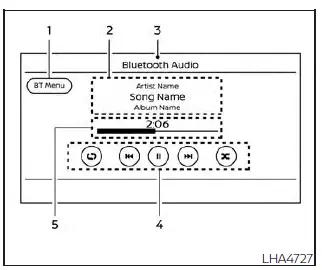
Bluetooth screen
- "BT Menu" key
Depending on the Bluetooth version supported by the connected device, either the "BT Menu" key or the "Connections" key may be displayed. - Track information
Shows available information such as song name, artist name, and album name when the connected device provides this data. - Audio source indicator
Indicates the currently selected audio source. - Bluetooth audio operation keys
Touch these keys to control Bluetooth audio playback functions from the Nissan Kicks display. - Play time and progress bar
The play time of the current track is displayed.The progress bar shows how far the track has played.
Bluetooth operation keys
Touch the on-screen keys to control Bluetooth playback functions through the Nissan Kicks audio interface.
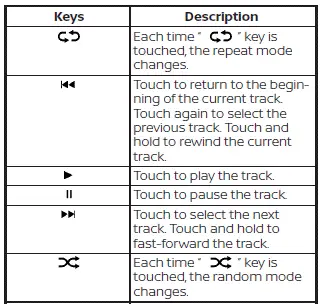
Bluetooth audio operation
The ability to pause, change tracks, fast-forward, rewind, shuffle, or repeat music may vary depending on the connected Bluetooth device, its software, and supported audio profiles.
Some functions may be unavailable on certain devices, even when basic Bluetooth audio playback operates normally.
NOTE:
Depending on the connected Bluetooth audio device, audio controls may respond differently, or there may be a short delay before music begins playing through the Nissan Kicks speakers.
Activation and playing
A Bluetooth audio device can be played by touching the "Bluetooth" key on the Menu screen or by selecting Bluetooth from the Launch Bar.
To pause Bluetooth audio playback, touch the "
 " key. Touch the "
 "
key
to continue playback.
"
key
to continue playback.
Changing folders
To change folders or browse available Bluetooth audio categories, touch the "BT Menu" key when it is displayed.
Fast-forwarding/rewinding
To fast-forward or rewind the current track, press
and hold the
 or
or
 buttons on the
control panel or touch the "
buttons on the
control panel or touch the "
 " or "
 "
keys on the screen.
"
keys on the screen.
Changing play mode
Repeat mode
Touch the "
 " key on the screen
to
change the repeat mode when supported by the connected device.
" key on the screen
to
change the repeat mode when supported by the connected device.
Random mode
Touch the "
 " key on the screen
to
change the random mode when the connected device allows this function.
" key on the screen
to
change the random mode when the connected device allows this function.
NOTE:
Available repeat and random modes depend on the connected Bluetooth device and may differ between phones, music apps, and media players.
BT Menu
Touch the "BT Menu" key on the Bluetooth audio screen to display the Bluetooth audio menu screen.
The following items are available when supported by the connected device and active Bluetooth audio source.
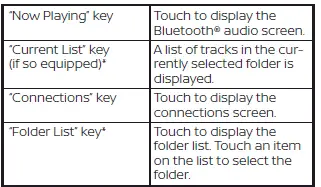
*: displayed only when available.
NOTE:
Depending on the connected device, the "BT Menu" key may not be displayed on the Nissan Kicks Bluetooth audio screen.
Steering wheel switch for audio control Nissan Kicks 2025
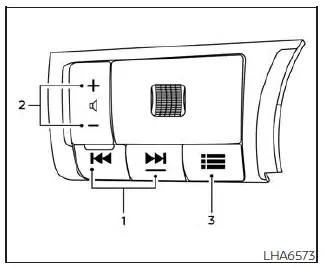
-
 SEEK/TRACK buttons
- Volume control switch
- Shortcut switch
Shortcut switch
Press the shortcut switch to open the shortcut menu on the vehicle information display of the Nissan Kicks.
Use the scroll dial to highlight "Audio source" (if so equipped), then press the OK button to confirm the selection.
Use the scroll dial again to choose the preferred audio source, then press the OK button once more. This lets the driver change audio sources without taking a hand away from the steering wheel controls.
Volume control switch
Press the volume control switch to raise or lower the audio volume. The switch allows quick adjustment of sound level while keeping attention on driving.
 SEEK/TRACK buttons
AM and FM
- Press or hold for less than 1.5 seconds to move up or down through preset radio stations and display the preset station list.
- Press or hold for more than 1.5 seconds to seek upward or downward to the next available broadcasting station.
iPod
- Press or hold for less than 1.5 seconds to move to the next or previous track number.
- Press or hold for more than 1.5 seconds to rewind or fast-forward the track currently playing through the Nissan Kicks audio system.
Bluetooth Streaming Audio
Press or hold for less than 1.5 seconds to skip forward or backward to another song, depending on the connected Bluetooth device and supported playback functions.
USB
- Press or hold for less than 1.5 seconds to increase or decrease the track number.
- Press or hold for more than 1.5 seconds to rewind or fast-forward the track being played from the USB device.
Roof Mounted Antenna
The antenna is installed on the rear section of the Nissan Kicks roof and is used to support radio reception.
CAUTION
- Ice buildup on the antenna can reduce radio performance. Remove ice carefully to restore proper reception.
- When clearing snow from the roof, do not apply heavy force to the antenna.
Excessive pressure can break the antenna or dent the roof panel.
- When using a high-pressure car wash, keep the spray nozzle away from the antenna. Strong water pressure may deform or damage the seal.
- Radio performance may be affected if roof cargo blocks the signal path. Whenever possible, avoid placing cargo close to the antenna area.