
Seat Ibiza (6F) 2017-2026 Owner's Manual: Customising the infotainment system
The Seat Ibiza infotainment system allows certain menus and screen layouts to be personalised so that your preferred functions can be accessed more conveniently. Customisation is particularly useful when you regularly use the same applications or infotainment features, as it reduces the need to search through several menus. Depending on the equipment and system version, you can adjust the available shortcuts and organise supported functions according to your preferences.
The main menu contains function buttons that provide access to the infotainment applications available in the vehicle. These buttons serve as entry points to the corresponding menus and functions. The selection of applications depends on the infotainment configuration, and the available personalisation options determine how certain functions can be arranged on the display.
Customise shortcuts
Customisable shortcuts are located along the lower part of the infotainment screen. They provide direct access to selected system functions without requiring you to return to the main menu each time. The shortcut configuration can be modified by removing existing favourites, replacing them with other available functions or changing their order. This allows the shortcut area to reflect the functions you use most frequently in your Seat Ibiza.
- Open shortcut editing. Touch and hold one of the existing shortcut icons to display an additional editing window. Alternatively, press the + symbol in an empty shortcut position to open the selection interface for that location.
- Select an application. In the additional window, choose the desired icon from the available applications bar. The selection is limited to the functions supported by the infotainment system and offered for use as shortcuts.
- Remove a favourite. Select Delete Favourite to remove an existing shortcut icon from the customised area. This deletes the shortcut from the current arrangement rather than removing the corresponding infotainment function from the system.
- Replace a shortcut. Select an icon in the additional editing window to change the function assigned to the chosen shortcut position. This allows an existing favourite to be replaced with another available infotainment function.
- Change the order. Touch and hold the shortcut icon you want to move, then drag it to the desired position. Release the icon when it reaches the location where you want it to appear. Repeat the procedure for any other shortcuts that need to be rearranged.
- Finish editing. When you have completed the shortcut arrangement, press
Finish in the additional window or select
 to close the editing
mode and return to the normal infotainment interface.
Settings (system and sound)
The Seat Ibiza infotainment system provides separate configuration options for general system operation and audio playback. The range of settings available depends on the country, the installed infotainment equipment and the vehicle's overall specification. Consequently, some settings described in the operating instructions may not appear in every vehicle, and certain menus may contain different options depending on the supported functions.
Modifying settings
The symbols used in the system and sound settings menus follow the same operating principles throughout the infotainment interface. Understanding these symbols makes it easier to identify the available controls and determine how individual settings can be changed. The illustrations below show the symbols and indications used when working with the corresponding configuration options.
Changes made to the available system and sound settings are applied automatically when the relevant menus are closed. There is no separate general confirmation procedure required for these adjustments. After selecting the desired values, you can leave the settings menu and continue using the infotainment system with the updated configuration.

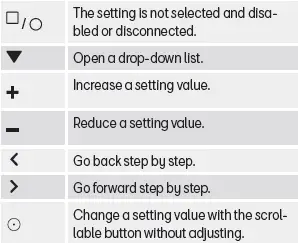
Sound settings
- To open the sound configuration menu, select HOME >
 . This provides access to the
available audio adjustment options for the infotainment system.
Depending on the audio equipment installed in the Seat Ibiza, the sound settings menu may contain the following functions, information and adjustment options. These controls allow supported sound characteristics and playback preferences to be configured:
- Equaliser. Provides access to the available sound equalisation controls, allowing the audio characteristics to be adjusted according to the options supported by the installed sound system.
- Position. Opens the available sound positioning settings. These controls are used to adjust the audio presentation according to the positioning options provided by the infotainment system.
- Settings. Contains additional sound-related configuration options supported by the audio system. The exact controls and adjustments available depend on the equipment fitted to the vehicle.
System settings
- To access the general infotainment configuration, select HOME >
 . The system settings menu
contains the available options for configuring the display, operating preferences, connections and other
supported functions.
The system settings menu may provide the following functions, information and configuration options. The available selection depends on the infotainment version, the Seat Ibiza equipment specification and the functions supported in the relevant country:
- Screen. Provides access to the available display configuration options. These settings relate to the appearance and operation of the infotainment screen.
- Time and date. Allows the vehicle's time and date settings to be viewed or adjusted using the options supported by the infotainment system. Correct values help ensure that the displayed time and date information corresponds to the intended settings.
- Language. Provides the available language selection options for the infotainment interface. Changing the language affects the supported menu text and system information displayed on the screen.
- Additional keypad languages. Allows supplementary keyboard languages to be configured where supported. These options are relevant when entering text through the infotainment system's on-screen keyboard.
- Units. Opens the available measurement unit settings. These options determine how supported values and measurements are presented within the infotainment interface.
- Voice control. Provides access to the configuration options associated with the infotainment system's supported voice operation functions.
- Wi-Fi. Opens the wireless network settings, where the available Wi-Fi connection options can be managed according to the capabilities of the installed infotainment system.
- Data connection. Provides access to the settings associated with data connectivity. The available options depend on the vehicle's communication equipment and supported online functions.
- Manage mobile devices. Opens the device management interface for supported connected mobile phones and other compatible devices. This menu is used to manage the connections and device-related options provided by the infotainment system.
- Restore factory settings. Provides access to the procedure for returning the infotainment system to its factory configuration. Restoring factory settings deletes stored settings and personal data and can affect registered users, online services and mobile keys. Review the relevant warnings before performing this operation.
- System information. Displays the available information about the infotainment system and its installed software or configuration, according to the details provided by the system.
- Copyright. Opens the information concerning software copyright and applicable licensing conditions. This section provides access to the legal notices associated with software included in the infotainment system.
- Configuration wizard. Provides access to the guided configuration function, where available. The wizard assists with the supported initial setup and configuration procedures of the infotainment system.
Adjust the volume of external audio sources
When an external audio source is connected to the Seat Ibiza infotainment system, its output level may differ from that of the vehicle's other audio sources. If the playback volume needs to be increased, first reduce the volume on the infotainment system before making adjustments to the connected device. This precaution helps prevent an unexpected increase in sound level when the external source's output or the system's input volume setting is changed.
If the audio from the connected external source is unusually quiet, begin by increasing the output volume directly on the external device. Make the adjustment gradually while checking the sound reproduced through the vehicle's speakers. If the playback level remains too low, change the infotainment system's input volume setting to medium or high, as appropriate. Adjusting the source output and the corresponding input setting allows the playback level to be brought closer to that of other audio sources.
If the connected external audio source sounds excessively loud or the playback is distorted, reduce the output volume on the external device first. Check whether the sound becomes clearer and returns to a suitable level. If the volume is still too high or distortion remains, change the infotainment system's input volume setting to medium or low. Avoid continuing playback with noticeable distortion, as an unsuitable audio level can reduce sound quality and may damage the Seat Ibiza's loudspeakers.
 Managing the infotainment system
The Seat Ibiza infotainment system is operated using the controls provided on the control and display unit. These
controls allow you to open menus, select functions, modify settings and interact wit ...
 Clean the screen
The Seat Ibiza infotainment display should be cleaned carefully to remove fingerprints, dust and other deposits
without damaging its surface. Stubborn dirt must be removed gently, using only suitabl ...
See also:
Honda Civic Owners Manual. Playing Pandora’
Your audio system allows you to listen to music from the Pandora’ app on a
compatible smartphone.
This function is available when the phone is paired and connected to the
vehicle’s
Bluetooth’ HandsFreeLink’ (HFL) system, or with an iPhone, you can connect using
your USB cable to the ...
