



The Steering Assist switch is used to enable or disable the Steering Assist feature available on Nissan Kicks models equipped with ProPILOT Assist.
The Steering Assist setting can be controlled through the vehicle information display menu, while the switch provides convenient access to activate or deactivate the feature.
When ProPILOT Assist is engaged, the Nissan Kicks Steering Assist system can provide steering input to help keep the vehicle closer to the center of the detected lane. This feature is designed to reduce driver workload during highway driving and certain traffic conditions.
Although Steering Assist can provide support, the driver must always keep both hands available for steering and remain fully attentive to road conditions.
USB/iPod charging ports
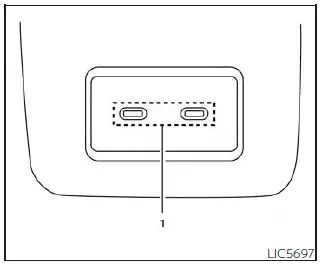
1. Type-C USB
The Nissan Kicks is equipped with USB/iPod charging ports located on the rear side of the center console, allowing rear-seat passengers to charge compatible electronic devices conveniently.
These charging ports are intended to provide power for supported devices such as smartphones, tablets, wireless accessories, and other USB-powered equipment.
NOTE:
- The rear USB/iPod charging ports do not communicate with the Nissan Kicks display screen or audio system. For media playback and device integration, use the USB connection port located on the instrument panel below the climate control system.
- For optimal charging performance, use original manufacturer cables whenever possible. USB Type-C to USB Type-A adapters (or the reverse) may be used, but charging speed and compatibility may vary depending on the connected device.
For best results, keep charging ports clean and free of debris, and avoid placing excessive strain on charging cables during use.