



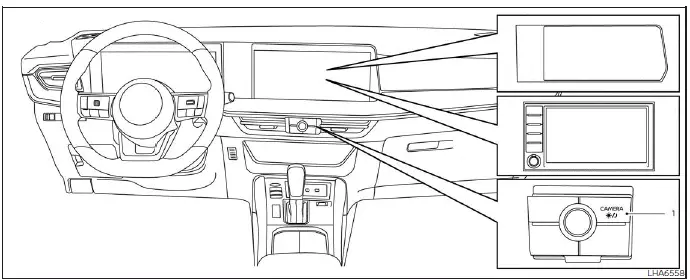
- CAMERA button/
 button
The RearView Monitor in the Nissan Kicks is designed to show a view of the area behind the vehicle when reversing. It helps the driver see large stationary objects directly behind the rear bumper, but it must always be used together with mirrors, direct visual checks, and careful low-speed backing.
WARNING
- Failure to follow the warnings and instructions for correct use of the Nissan Kicks RearView Monitor system could result in serious injury or death.
- The RearView Monitor is a convenience feature and is not a replacement for proper reversing practice. Always turn your head, look out the windows, check the mirrors, and confirm that the area is clear before moving the vehicle. Always reverse slowly.
- The system is intended to assist the driver by showing large stationary objects directly behind the Nissan Kicks, helping reduce the risk of vehicle damage while backing up.
- The distance guide lines and vehicle width lines should be used only as references when the vehicle is on a flat, paved surface. The distance shown on the monitor may differ from the actual distance between the Nissan Kicks and objects displayed on the screen.
CAUTION
When removing dirt, snow, ice, or road grime from the camera area, do not scratch the camera lens. A damaged or dirty lens can reduce RearView Monitor image clarity.
The RearView Monitor system automatically displays the rear camera view when the shift lever is moved into the R (Reverse) position. Audio from the radio or media system can still be heard while the RearView Monitor is active.
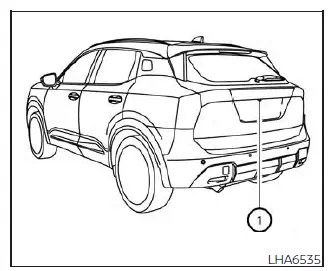
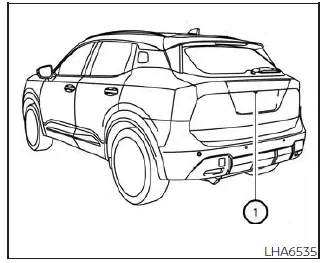
To display the rear view, the RearView Monitor uses a camera mounted just above the Nissan Kicks license plate 1.
- RearView Monitor system operation
- Difference between predicted and actual distances (Type A)
- How to park with predicted course lines (Type A)
- Adjusting the screen
RearView Monitor system operation Nissan Kicks crossover
With the ignition switch in the ON position, move the shift lever to the R (Reverse) position to activate the Nissan Kicks RearView Monitor.
How to read the displayed lines (Type A)
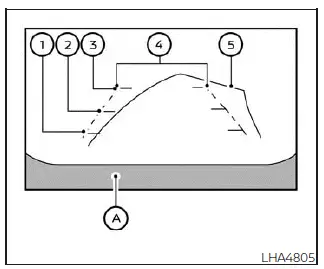
The monitor displays guide lines that indicate approximate vehicle width and distance to objects, using vehicle body line A as the reference point.
Distance guide lines
These lines provide an approximate distance from the rear of the Nissan Kicks.
- Red line 1: approximately 1.5 ft (0.5 m)
- Yellow line 2: approximately 3 ft (1 m)
- Green line 3: approximately 7 ft (2 m)
Vehicle width guide lines 4
These lines show the approximate width of the Nissan Kicks when backing up.
Predicted course lines (if so equipped) 5
Predicted course lines show the estimated path of the vehicle while reversing. They appear on the monitor when the shift lever is in the R (Reverse) position and the steering wheel is turned.
The predicted course lines move according to steering wheel angle and disappear when the steering wheel is returned to the straight-ahead position.
The vehicle width guide lines and the predicted course lines appear wider than the actual vehicle width and turning path. Use them as a guide only and continue checking the surroundings directly.
How to read the displayed lines (Type B)
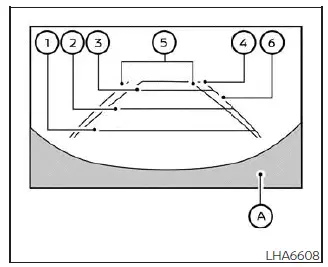
The Type B display also shows guide lines that represent approximate distance and vehicle width, using vehicle body line A as the visual reference.
Distance guide lines
These lines indicate approximate distances behind the Nissan Kicks.
- Red line 1: approximately 1.5 ft (0.5 m)
- Blue line 2: approximately 3 ft (1 m)
- Blue line 3: approximately 7 ft (2 m)
- Blue line 4: approximately 10 ft (3 m), if equipped
Vehicle width guide lines 5
These lines indicate the approximate vehicle width while reversing.
Predicted course lines (if so equipped) 6
Predicted course lines indicate the estimated path of the Nissan Kicks when backing up. They are displayed when the shift lever is in R (Reverse) and the steering wheel is turned.
The lines move in relation to the steering angle and are not displayed when the steering wheel is centered.
The vehicle width lines and predicted course lines are intentionally shown wider than the actual vehicle and its path, giving the driver a safety margin when judging space behind the Nissan Kicks.
Keep the rear camera lens clean and check the area behind the Nissan Kicks yourself before reversing, especially in rain, snow, darkness, or crowded parking areas where small objects may be difficult to see on the screen.
Difference between predicted and actual distances (Type A) Nissan Kicks P16
The guidelines shown on the Nissan Kicks RearView Monitor are intended only as an approximate visual reference. Their position on the screen may not always match the real distance between the vehicle and objects behind it.
Objects located on steep uphill or downhill surfaces, as well as objects that extend outward from a wall, pole, curb, or another structure, may appear at a different distance on the monitor than they actually are. If the distance is difficult to judge, turn your head and look behind the Nissan Kicks while backing up, or stop safely, park the vehicle, and check the area behind it directly.
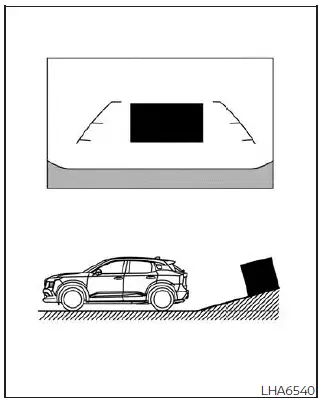
Backing up on a steep uphill
When backing the Nissan Kicks up a steep hill, the distance guide lines and vehicle width guide lines may appear closer than the actual distance. Objects on the hill are farther away than they appear on the RearView Monitor display.
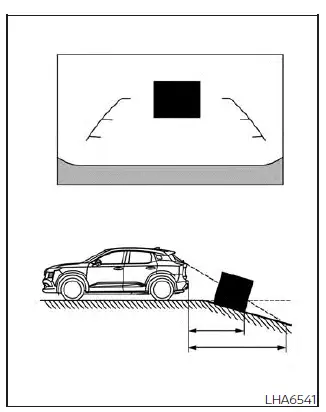
Backing up on a steep downhill
When backing the Nissan Kicks down a steep hill, the distance guide lines and vehicle width guide lines may appear farther away than the actual distance. Objects on the downhill surface are closer than they appear on the monitor.
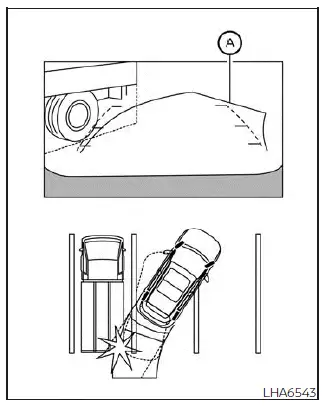
Backing up near a projecting object
The predicted course lines A may not touch the object shown on the display. However, the Nissan Kicks may still contact the object if part of that object extends into the actual backing path.
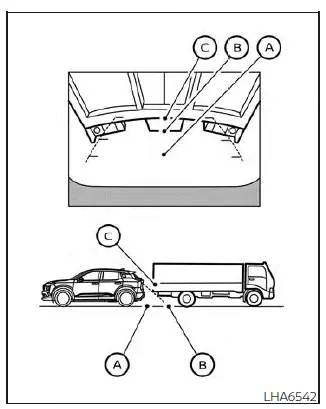
Backing up behind a projecting object
Position C may appear farther away than position B on the display. In reality, position C is at the same distance as position A. The Nissan Kicks may hit the object while backing toward position A if the object projects into the actual path of the vehicle.
Difference between predicted and actual distances (Type B)
The guide lines displayed on the Nissan Kicks RearView Monitor Type B screen are also approximate and should be treated as a visual aid, not as an exact measurement system.
Objects on slopes or objects that extend outward can appear closer or farther than they really are. When the situation is unclear, check the mirrors, look over your shoulder, and confirm the surrounding area directly before continuing to reverse.
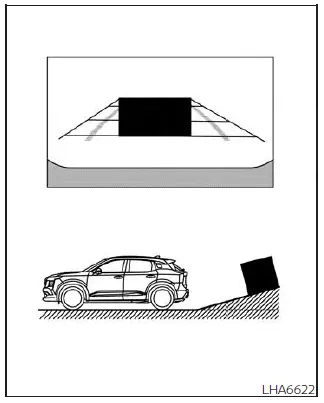
Backing up on a steep uphill
When backing the Nissan Kicks up a steep hill, the distance guide lines and vehicle width guide lines may be displayed closer than the actual distance. Any object on the hill is farther from the vehicle than it appears on the monitor.
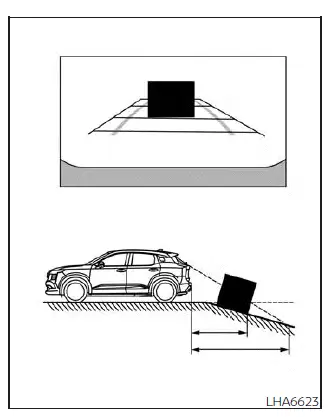
Backing up on a steep downhill
When backing the Nissan Kicks down a steep hill, the distance guide lines and vehicle width guide lines may be displayed farther away than the actual distance. Any object on the hill is closer to the vehicle than it appears on the screen.
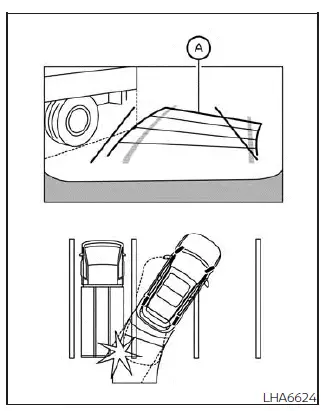
Backing up near a projecting object
The predicted course lines A may appear clear of the object on the display. However, if the object projects into the real backing path, the Nissan Kicks may still make contact with it.
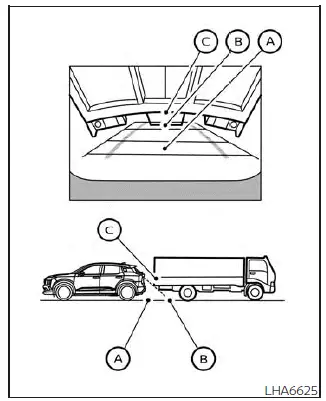
Backing up behind a projecting object
Position C may appear farther away than position B on the monitor. However, position C is actually at the same distance as position A. The Nissan Kicks may strike the object when backing toward position A if the object extends into the actual reversing path.
On uneven ground, near walls, posts, loading docks, curbs, or parked vehicles, use the RearView Monitor together with direct visual checks to judge space accurately before moving the Nissan Kicks.
How to park with predicted course lines (Type A) Nissan Kicks crossover
WARNING
- If the tires on the Nissan Kicks are replaced with tires of a different size, the predicted course lines may no longer appear accurately on the RearView Monitor.
- On snow-covered, icy, wet, gravel, or slippery road surfaces, the predicted course lines may not match the actual path of the vehicle.
- If the battery is disconnected or becomes discharged, the predicted course lines may be displayed
incorrectly.
If this happens, perform the following procedures to help the system recalibrate:
- With the engine running, turn the steering wheel fully from one side to the other.
- Drive the Nissan Kicks in a straight line for more than 5 minutes.
- If the steering wheel is turned while the ignition switch is in the ACC position, the predicted course lines may be shown incorrectly.
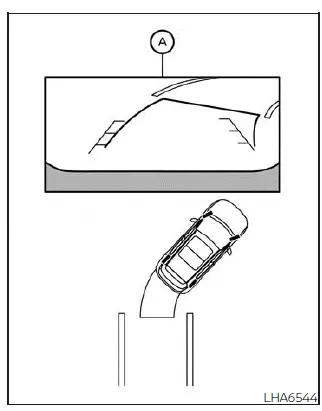
1. Before parking the Nissan Kicks, visually check that the parking space is clear, safe, and large enough for the vehicle.
2. When the shift lever is moved to the R (Reverse) position, the rear view of the vehicle appears on screen A.
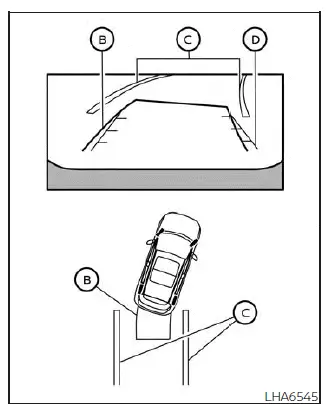
3. Back up slowly while turning the steering wheel so that predicted course lines B move into parking space C.
4. Adjust the steering wheel carefully until vehicle width guide lines D become parallel with parking space C, using the predicted course lines as a reference.
5. When the Nissan Kicks is fully positioned within the parking space, move the shift lever to P (Park) and apply the parking brake.
How to park with predicted course lines (Type B)
WARNING
- If the Nissan Kicks is fitted with tires of a different size than specified, the predicted course lines may be displayed inaccurately.
- On slippery surfaces such as snow, ice, wet pavement, or loose gravel, the path shown by the predicted course lines may differ from the actual movement of the vehicle.
- If the battery has been disconnected or fully discharged, the predicted course lines may not appear
correctly.
If this occurs, perform the following procedures:
- Turn the steering wheel from lock to lock while the engine is running.
- Drive the vehicle straight ahead for more than 5 minutes.
- When the steering wheel is turned with the ignition switch in the ACC position, the predicted course lines may not display accurately.
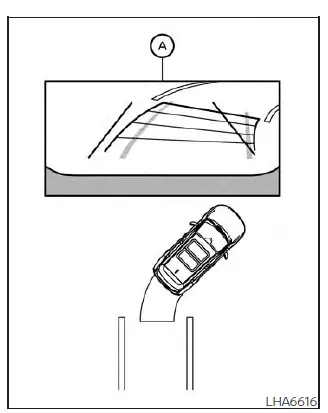
1. Before beginning the parking maneuver, visually inspect the area behind and around the Nissan Kicks to make sure the parking space is safe.
2. The rear camera view is displayed on screen A when the shift lever is placed in the R (Reverse) position.
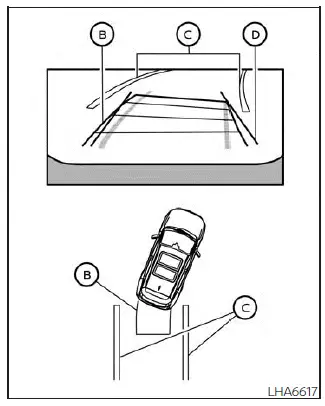
3. Reverse slowly and adjust the steering wheel so that predicted course lines B guide the vehicle into parking space C.
4. Continue steering carefully until vehicle width guide lines D are parallel with parking space C, using the predicted course lines only as an aid.
5. After the Nissan Kicks is completely parked within the space, shift to P (Park) and apply the parking brake.
While parking, keep vehicle speed low and continue checking mirrors, side windows, and the area behind the Nissan Kicks, because the RearView Monitor cannot show every obstacle or moving object around the vehicle.
Adjusting the screen Nissan Kicks 2026
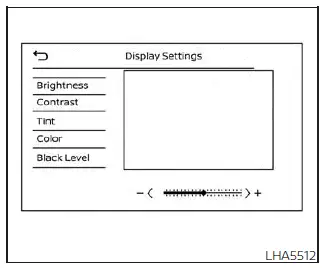
Type A (if so equipped)
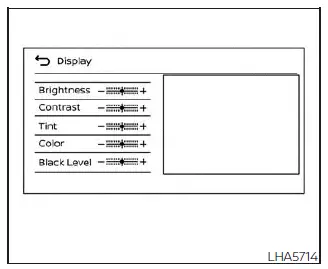
Type B (if so equipped)
Type A
1. From the main menu screen of the Nissan Kicks display, touch the "Settings" key.
2. Touch the "Camera" key to open the RearView Monitor adjustment menu.
3. Select the item you want to adjust: "Brightness", "Contrast", "Tint", "Color", or "Black Level".
4. Adjust the selected setting by touching the "+" or "-" key on the touch-screen display until the image is comfortable and clear.
Type B
1. From the main menu screen, touch the "Settings" key.
2. Touch the "Camera" key.
3. Touch the "Display Settings" key.
4. Adjust "Brightness", "Contrast", "Tint", "Color", or "Black Level" by touching the "+" or "-" key on the Nissan Kicks touch-screen display.
NOTE:
Do not adjust any RearView Monitor display settings while the Nissan Kicks is moving. Make these changes only when the vehicle is safely stopped.
How to turn on and off predicted course lines
The predicted course lines can be switched ON or OFF when the Nissan Kicks is in the P (Park) position.
1. Press the CAMERA button.
2. Touch the "Predicted Course Lines" key to turn the feature ON or OFF.
To turn the predicted course lines ON or OFF while the shift lever is in the R (Reverse) position, press the CAMERA button.
RearView Monitor system limitations
WARNING
The following are important limitations of the Nissan Kicks RearView Monitor system. Failure to operate the vehicle with these limitations in mind could result in serious injury or death.
- The RearView Monitor cannot completely remove blind spots and may not display every object behind the vehicle.
- The area directly below the bumper and the corner areas near the bumper cannot be shown clearly because
of the camera's viewing range.
The system may not display small objects below the bumper, objects very close to the bumper, or objects lying flat on the ground.
- Objects shown on the Nissan Kicks RearView Monitor may appear at a different distance than they actually are because the system uses a wide-angle camera lens.
- The image on the RearView Monitor appears reversed compared with the view seen through the rearview mirror and outside mirrors.
- Use the displayed guide lines only as a reference. Always check the area behind and around the Nissan Kicks directly before reversing.
For clearer visibility, keep the rear camera lens clean and avoid relying only on the screen when backing up in tight parking spaces, poor weather, or low-light conditions.
The displayed lines can be strongly affected by the number of occupants, fuel level, cargo weight, vehicle position, road surface, and road grade. For this reason, the Nissan Kicks RearView Monitor guide lines should always be treated as an estimate, not as an exact measurement.
The following conditions are operating limitations of the RearView Monitor and do not indicate a system malfunction:
- When the temperature is extremely high or extremely low, objects may not be displayed clearly on the screen.
- When strong sunlight or bright light shines directly into the camera, the image may appear washed out or difficult to see.
- Vertical lines may appear on objects shown on the screen. This can be caused by strong reflected light from the bumper or surrounding surfaces.
- The display may flicker under fluorescent lighting.
- The colors of objects shown on the Nissan Kicks RearView Monitor may differ slightly from their actual colors.
- Objects may appear unclear when reversing in dark areas or low-light environments.
- There may be a slight delay when switching between camera views or display modes.
- If dirt, rain, snow, ice, or road grime accumulates on the camera lens, the RearView Monitor may not show objects clearly. Clean the camera carefully before use.
- Do not apply wax to the camera lens. If wax contacts the lens, remove it with a clean cloth dampened with diluted mild cleaning agent, then wipe the lens with a dry cloth.
System maintenance
CAUTION
- Do not use alcohol, benzine, thinner, or harsh solvents to clean the rearview camera. These chemicals may cause discoloration or damage to the camera surface.
- Do not damage the camera lens or housing, as this may reduce RearView Monitor image quality and affect rear visibility.
If dirt, rain, snow, or road debris accumulates on camera 1, the Nissan Kicks RearView Monitor may not display objects clearly. Clean the camera gently with a cloth dampened with diluted mild cleaning agent, then wipe it with a dry cloth.
Clear camera visibility is especially important when reversing in tight spaces, near curbs, around pedestrians, or in poor weather, because even a small amount of dirt on the lens can reduce the usefulness of the RearView Monitor.