



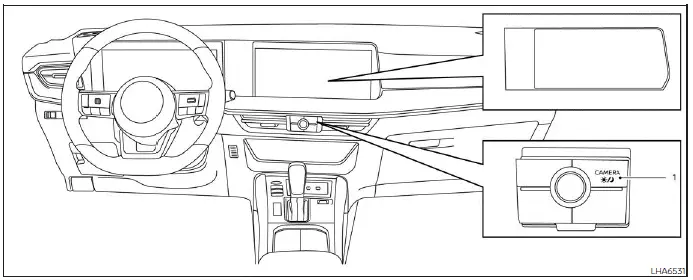
- CAMERA button/
 button
The Intelligent Around View Monitor in the Nissan Kicks is designed to help the driver see the area around the vehicle during low-speed maneuvers, such as parking, turning into a tight space, or aligning the vehicle near obstacles. The system combines camera images to provide multiple views on the display, but it must always be used together with direct visual checks and careful driving.
WARNING
- Failure to follow the warnings and instructions for proper use of the Nissan Kicks Intelligent Around View Monitor system could result in serious injury or death.
- The Intelligent Around View Monitor is a convenience feature and is not a substitute for proper vehicle operation. The system has blind areas where objects may not be visible. The four corners of the Nissan Kicks, in particular, may not always show objects clearly in the bird's-eye view, front view, or rear view. Always check the surroundings directly before moving the vehicle and operate the vehicle slowly.
- The driver is always responsible for safe parking, reversing, turning, and all other maneuvers.
CAUTION
When cleaning dirt, snow, ice, or road grime from the camera area, do not scratch the camera lens. A scratched or dirty lens can reduce image quality and affect monitor performance.
The Intelligent Around View Monitor system is intended to assist the driver during parking situations, including slot parking, parallel parking, and other close-range maneuvers where surrounding visibility is important.
The monitor displays different camera views of the Nissan Kicks in a split-screen format, helping the driver understand the vehicle's position relative to nearby objects, curbs, lines, and surrounding space.
Not every view is available in every situation. The available display depends on vehicle speed, shift position, selected camera mode, and system conditions.
Available views:
- Front View
An approximately 150-degree view of the area in front of the Nissan Kicks. - Rear View
An approximately 150-degree view of the area behind the Nissan Kicks. - Bird's-Eye View
A simulated overhead view showing the surrounding area around the vehicle. - Front-Side View
A view around and ahead of the front passenger-side wheel, useful when approaching curbs or tight edges. - Front-Wide View
An approximately 180-degree wide-angle view of the front of the vehicle. - Rear-Wide View
An approximately 180-degree wide-angle view of the rear of the vehicle.
Intelligent Around View Monitor system operation
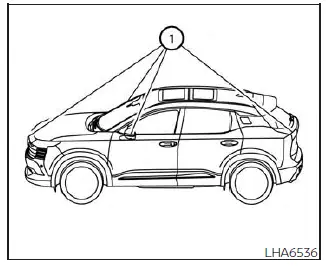
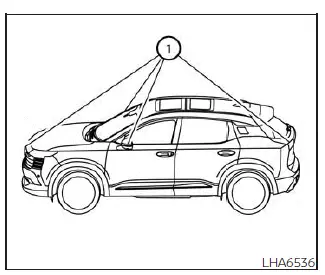
To create the available views, the Nissan Kicks Intelligent Around View Monitor uses cameras mounted in the front grille, on the outside mirrors, and above the rear license plate 1.
With the ignition switch in the ON position, move the shift lever to R (Reverse) or press the CAMERA button to operate the Intelligent Around View Monitor.
If the CAMERA button is pressed while the shift lever is in a position other than R (Reverse), the display will automatically return to the previous screen after approximately 3 minutes.
Available views
WARNING
- The distance guide lines and vehicle width lines should be used only as references when the Nissan Kicks is on a paved, level surface. The apparent distance shown on the monitor may differ from the actual distance between the vehicle and displayed objects.
- Use the displayed lines and bird's-eye view only as aids. Their accuracy can be affected by the number of occupants, cargo weight, fuel level, vehicle position, road condition, and road grade.
- If the tires are replaced with tires of a different size, the predicted course lines and bird's-eye view may be displayed incorrectly.
- When driving the Nissan Kicks uphill, objects shown on the monitor may be farther away than they appear. When driving downhill, objects shown on the monitor may be closer than they appear.
- Objects in the rear view appear reversed compared with the way they are seen directly or in the outside mirrors.
- Use the mirrors and direct visual checks to properly judge the distance to other objects.
- On snow-covered, icy, wet, or slippery roads, the predicted course lines may differ from the actual path of the vehicle.
- The vehicle width lines and predicted course lines are displayed wider than the actual Nissan Kicks width and driving path.
For safer parking, use the Intelligent Around View Monitor together with slow vehicle movement, mirror checks, and direct observation through the windows, especially near pedestrians, curbs, poles, walls, and low obstacles.
Front view
Front and rear view
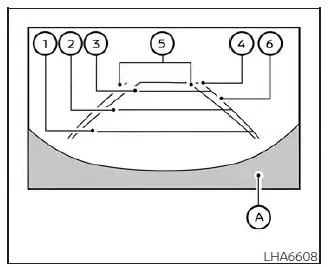
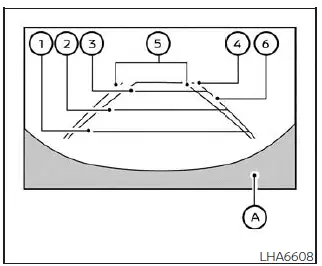
The Nissan Kicks Intelligent Around View Monitor displays guide lines that show the approximate vehicle width and the estimated distance to objects, using vehicle body line A as the reference point. These lines help the driver judge space when moving slowly near obstacles, parking lines, curbs, or other vehicles.
Distance guide lines:
These lines indicate approximate distances from the vehicle body:
- Red line 1: approximately 1.5 ft (0.5 m)
- Blue line 2: approximately 3 ft (1 m)
- Blue line 3: approximately 7 ft (2 m)
- Blue line 4: approximately 10 ft (3 m), if equipped
Rear view
Vehicle width guide lines 5:
These guide lines show the approximate width of the Nissan Kicks when backing up. They are useful for aligning the vehicle with a parking space, driveway, or lane marking.
Predicted course lines 6:
The predicted course lines show the estimated direction of travel while the vehicle is being maneuvered. They appear on the monitor when the steering wheel is turned and move according to steering input.
The predicted course lines are not displayed when the steering wheel is in the straight-ahead position.
The front view will not be displayed when the Nissan Kicks is traveling above approximately 6 mph (10 km/h).
NOTE:
When the monitor shows the front view and the steering wheel is turned about 90 degrees or less from the straight-ahead position, both the right and left predicted course lines 6 are displayed.
When the steering wheel is turned about 90 degrees or more, only the line on the opposite side of the turn is displayed.
Bird's-eye view
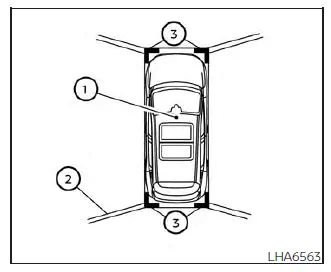
The bird's-eye view provides a simulated overhead image of the Nissan Kicks and its surroundings. This view helps the driver confirm the vehicle's position and understand the predicted path toward a parking space.
Vehicle icon 1 indicates the approximate position of the Nissan Kicks. The apparent distance between objects in the bird's-eye view and the vehicle may differ from the actual distance.
Areas that cannot be covered by the cameras 2 are shown in black.
After the ignition switch is placed in the ON position, the non-viewable area 2 is highlighted in yellow for approximately 3 seconds after the bird's-eye view appears.
The non-viewable corner areas 3 are also displayed in red and blink for the first 3 seconds to remind the driver to use extra caution.
WARNING
- Objects shown in the bird's-eye view may appear farther away than their actual distance from the Nissan Kicks.
- Tall objects, such as curbs, posts, walls, or nearby vehicles, may appear misaligned or may not be displayed correctly at the seams between camera views.
- Objects positioned above the camera viewing range cannot be displayed.
- The bird's-eye view may become misaligned if a camera position changes due to impact, repair, or incorrect installation.
- Lines on the ground may appear misaligned or not perfectly straight at the seams between views. This misalignment may become more noticeable as the line extends farther away from the Nissan Kicks.
Front-side view
Guiding lines
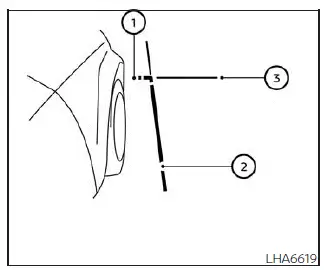
The front-side view displays guide lines that indicate the approximate vehicle width and front end position of the Nissan Kicks. This view is useful when moving close to curbs, walls, parking blocks, or narrow passageways.
The front-of-vehicle line 1 shows the approximate location of the front edge of the vehicle.
The side-of-vehicle line 2 shows the approximate vehicle width, including the outside mirrors.
Extensions 3 of both the front line 1 and side line 2 are shown in blue to help the driver estimate clearance while maneuvering.
Front-wide view
The Intelligent Around View Monitor can make parking the Nissan Kicks easier, but it cannot replace careful observation. Always move slowly and check the area around the vehicle directly before turning, reversing, or entering a tight parking space.
Front-wide and rear-wide view
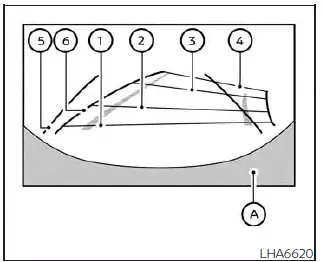
The front-wide and rear-wide views in the Nissan Kicks Intelligent Around View Monitor display a broader area across the entire screen. These views help the driver check blind corners on the left and right sides when moving slowly out of parking spaces, driveways, narrow exits, or areas with limited visibility.
The rear-wide view shows an approximately 180-degree area behind the Nissan Kicks, while the standard front view and rear view show an approximately 150-degree area.
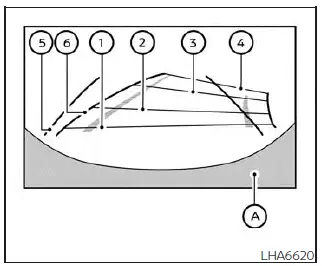
Distance guide lines
These guide lines indicate approximate distances from the vehicle body:
- Red line 1: approximately 1.5 ft (0.5 m)
- Blue line 2: approximately 3 ft (1 m)
Rear-wide view
- Blue line 3: approximately 7 ft (2 m)
- Blue line 4: approximately 10 ft (3 m), if equipped
Vehicle width guide lines 5
These lines show the approximate width of the Nissan Kicks when backing up. They are intended to help the driver align the vehicle and judge side clearance.
Predicted course lines 6:
The predicted course lines indicate the estimated path of the Nissan Kicks during low-speed maneuvering. They appear on the monitor when the steering wheel is turned and move according to the steering angle.
The predicted course lines are not displayed when the steering wheel is in the straight-ahead position.
The front view will not be displayed when vehicle speed is above approximately 6 mph (10 km/h).
NOTE:
When the monitor displays the front view and the steering wheel is turned about 90 degrees or less from the straight-ahead position, both the right and left predicted course lines 6 are displayed.
When the steering wheel is turned about 90 degrees or more, only the line on the opposite side of the turn is displayed.
Difference between predicted and actual distances
The guide lines shown on the Nissan Kicks Intelligent Around View Monitor are approximate references only. Their positions on the display may not match the actual distance between the vehicle and objects behind or around it.
Objects located on uphill or downhill surfaces, as well as objects that project outward from a wall, curb, post, parked vehicle, or other obstacle, may be closer or farther than they appear on the monitor. If the distance is uncertain, look behind the Nissan Kicks directly while backing up, or stop the vehicle, park safely, and check the area in person before continuing.
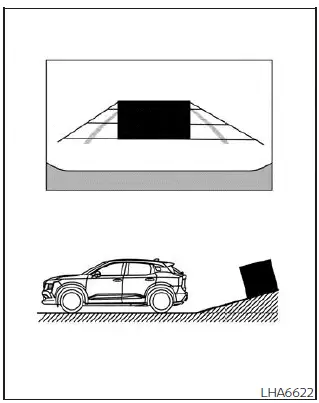
Backing up on a steep uphill
When backing the Nissan Kicks up a steep hill, the distance guide lines and vehicle width guide lines may appear closer than the actual distance. Objects on the hill are farther away than they appear on the monitor.
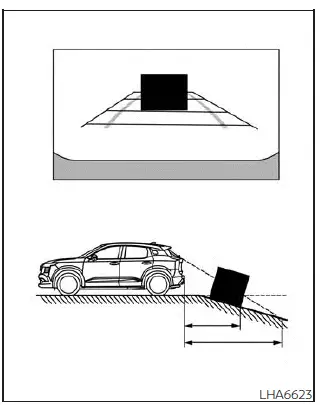
Backing up on a steep downhill
When backing the Nissan Kicks down a steep hill, the distance guide lines and vehicle width guide lines may appear farther away than the actual distance. Objects on the downhill surface are closer than they appear on the monitor.
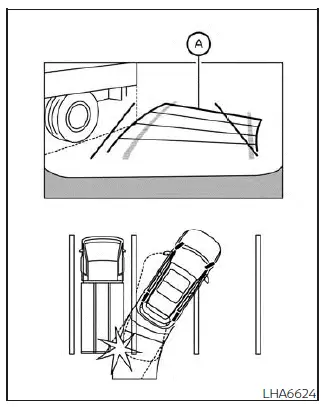
Backing up near a projecting object
The predicted course lines A may not touch the object shown on the display. However, the Nissan Kicks may still contact the object if it projects into the actual backing path.
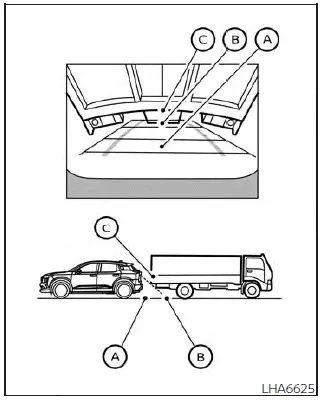
Backing up behind a projecting object
Position C may appear farther away than position B on the display. However, position C is actually at the same distance as position A. The Nissan Kicks may strike the object when backing toward position A if the object extends into the real reversing path.
How to park with predicted course lines
Use the predicted course lines as a helpful parking reference, but continue steering slowly and checking the mirrors, windows, and surroundings directly, especially when the Nissan Kicks is close to walls, curbs, posts, or other vehicles.
WARNING
- If the Nissan Kicks tires are replaced with tires of a different size, the predicted course lines may not be displayed accurately.
- On snow-covered, icy, wet, muddy, or otherwise slippery roads, the predicted course lines may differ from the actual path of the vehicle.
- If the battery is disconnected or becomes discharged, the predicted course lines may appear
incorrectly.
If this occurs, perform the following procedures:
- With the engine running, turn the steering wheel fully from one side to the other.
- Drive the Nissan Kicks straight ahead for more than 5 minutes.
- When the steering wheel is turned while the ignition switch is in the ON position, the predicted course lines may temporarily display incorrectly.
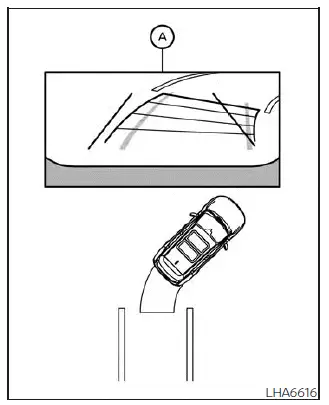
1. Before parking the Nissan Kicks, visually confirm that the parking space is safe, clear, and large enough for the vehicle.
2. When the shift lever is moved to the R (Reverse) position, the rear view of the vehicle appears on screen A.
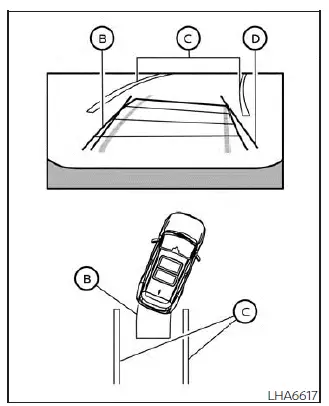
3. Reverse slowly while adjusting the steering wheel so that predicted course lines B enter parking space C.
4. Steer carefully until vehicle width guide lines D become parallel with parking space C, using the predicted course lines as a parking aid.
5. After the Nissan Kicks is completely positioned in the parking space, move the shift lever to P (Park) and apply the parking brake.
How to switch the display
With the ignition switch in the ON position, press the CAMERA button or move the shift lever to R (Reverse) to activate the Nissan Kicks Intelligent Around View Monitor.
The Intelligent Around View Monitor shows different split-screen views depending on the shift lever position. Press the CAMERA button to cycle through the available views.
If the shift lever is in the R (Reverse) position, the available views are:
- Rear view/bird's-eye view split screen
- Rear view/front-side view split screen
- Rear-wide view
If the shift lever is in the P (Park) or D (Drive) position, the available views are:
- Front view/bird's-eye view split screen
- Front view/front-side view split screen
- Front-wide view
The display will leave the Intelligent Around View Monitor screen when:
- The shift lever is in D (Drive) and the Nissan Kicks speed increases above approximately 6 mph (10 km/h).
- Another screen or system function is selected.
Adjusting the screen
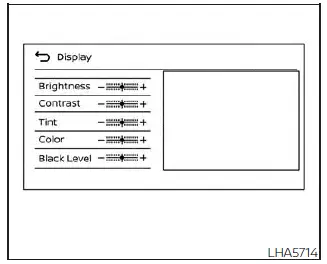
1. From the main menu screen, touch the "Settings" key.
2. Touch the "Camera" key or press the CAMERA button.
3. Touch the "Display Settings" key.
4. Select "Brightness", "Contrast", "Tint", "Color", or "Black Level".
5. Adjust the selected item by touching the "+" or "-" key on the touch-screen display.
NOTE:
Do not adjust any RearView Monitor or Intelligent Around View Monitor display settings while the Nissan Kicks is moving. Make sure the parking brake is firmly applied before making screen adjustments.
Intelligent Around View Monitor system limitations
WARNING
The following are important limitations of the Nissan Kicks Intelligent Around View Monitor system.
Failure to operate the vehicle with these limitations in mind could result in serious injury or death.
- Do not use the Intelligent Around View Monitor with the outside mirrors folded. Make sure the liftgate is securely closed before operating the Nissan Kicks while using the monitor.
- The apparent distance between objects shown on the Intelligent Around View Monitor may differ from the actual distance.
- The cameras are installed in the front grille, on the outside mirrors, and above the rear license plate. Do not attach anything to the Nissan Kicks that blocks or covers these cameras.
- When washing the vehicle with high-pressure water, do not spray directly around the cameras. Water may enter the camera unit and cause lens condensation, malfunction, fire, or electric shock.
- Do not strike or apply force to the cameras. They are precision components, and damage may cause malfunction, poor image display, fire, or electric shock.
For accurate parking assistance, keep all camera lenses clean and check the area around the Nissan Kicks directly, especially near low curbs, posts, children, pets, shopping carts, and other small obstacles that may not appear clearly on the monitor.
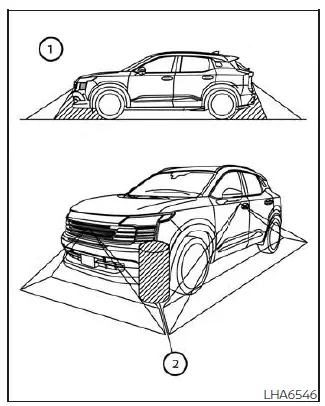
There are certain areas around the Nissan Kicks where the Intelligent Around View Monitor cannot display objects, and the system does not provide a warning for every moving object. In the front or rear view, an object located below the bumper or flat on the ground may not be visible 1. In the bird's-eye view, a tall object positioned near the seam 2 between camera viewing areas may not appear correctly on the monitor.
The following conditions are normal operating limitations and do not indicate a malfunction of the Nissan Kicks Intelligent Around View Monitor system:
- There may be a slight delay when switching between camera views.
- When the outside temperature is extremely high or extremely low, objects may not appear clearly on the screen.
- When strong sunlight or bright light shines directly into a camera, the displayed image may lose clarity.
- The screen may flicker under fluorescent lighting.
- Colors shown on the Intelligent Around View Monitor may differ slightly from the actual colors of objects.
- In dark environments, objects may appear unclear, and their colors may not be displayed accurately.
- There may be differences in sharpness between the individual camera views used to create the bird's-eye view.
- Do not apply wax to any camera lens. If wax contacts a lens, remove it with a clean cloth dampened with diluted mild cleaning agent, then wipe the area with a dry cloth.
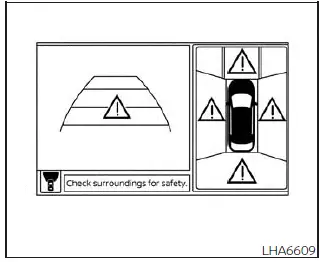
System temporarily unavailable
When the "!" icon appears on the Nissan Kicks display, an abnormal condition has been detected in the Intelligent Around View Monitor system. Normal driving operation is still possible, but the system should be inspected. It is recommended that you visit a NISSAN dealer for service.
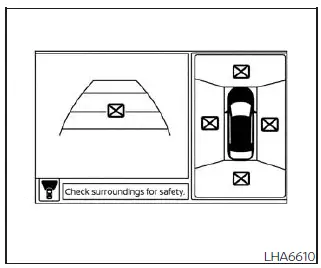
When the "[X]" icon appears on the screen, the camera image may be affected by temporary electronic interference from nearby devices or surrounding equipment. This does not prevent normal driving operation, but if the condition appears frequently, the Nissan Kicks should be inspected.
It is recommended that you visit a NISSAN dealer for this service.
System maintenance
CAUTION
- Do not use alcohol, benzine, thinner, or harsh solvents to clean the cameras. These chemicals may cause discoloration or damage to camera surfaces.
- Do not damage the cameras, as this may reduce image quality and negatively affect the monitor display.
If dirt, rain, snow, ice, or road grime accumulates on any camera 1, the Nissan Kicks Intelligent Around View Monitor may not display objects clearly. Clean the camera gently with a cloth dampened with diluted mild cleaning agent, then wipe it with a dry cloth.
Keeping the front, side, and rear camera lenses clean helps the Nissan Kicks display a clearer surrounding view during parking, reversing, and low-speed maneuvering in tight areas.