



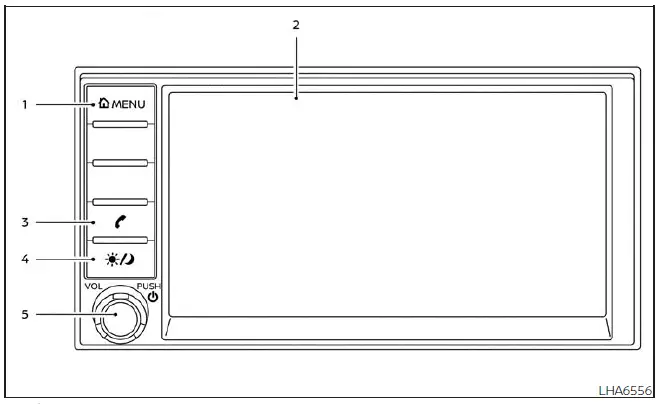
-
 MENU button
- Display screen
-
 button*
-
 (brightness control) button
- VOL (volume) knob / PUSH
 (power) button
* For more information about the Bluetooth Hands-Free Phone System control button, refer to the Bluetooth Hands-Free Phone System section.
When using the Nissan Kicks audio, display, phone, or connected system functions for an extended time, make sure the engine is running.
If the system is used for a long period while the engine is not running, the vehicle battery may discharge and the engine may not start.
Reference symbols:
"Example" - Words shown in quotation marks refer to keys displayed only on the touch-screen. These on-screen keys can be selected by touching the display.
How to use the touch-screen
CAUTION
- The glass display screen may break if struck by a hard or sharp object. If the screen breaks, do not touch the damaged glass because injury may result.
- When cleaning the display, do not use a rough cloth, alcohol, benzine, thinner, solvents, or paper towels containing chemical cleaning agents. These materials may scratch, stain, or damage the screen surface.
- Do not splash water, car fragrance, beverages, or any other liquid onto the display.
Liquid contact may cause the Nissan Kicks infotainment system to malfunction.
To support safe driving, some touch-screen functions cannot be used while the Nissan Kicks is in motion.
Functions that are unavailable while driving may appear gray, muted, or inactive on the display.
WARNING
- Always keep your full attention on driving.
- Avoid using vehicle features that could distract you from the road. Driver distraction may cause loss of vehicle control and result in an accident.
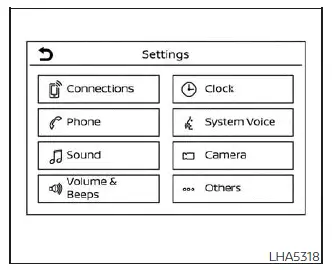
Touch-screen operation
The Nissan Kicks touch-screen allows access to audio, phone, settings, and connected functions through on-screen keys. Touch the desired item gently with a fingertip and avoid pressing the screen with sharp objects.

Touch-screen maintenance
To clean the display screen, use a dry, soft cloth. If additional cleaning is needed, apply a small amount of neutral detergent to a soft cloth first, then wipe the display carefully. Never spray water or detergent directly onto the screen.
Keeping the display clean helps maintain visibility, touch response, and a clear view of Nissan Kicks system information.
How to use the
 MENU button
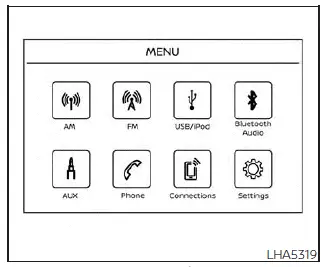
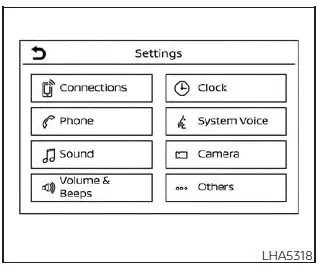
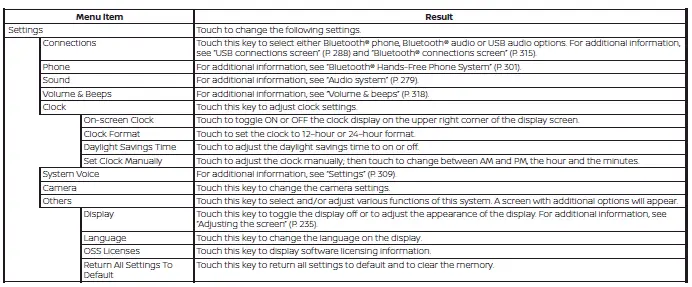
To select, adjust, or personalize available Nissan Kicks functions, features, and operating modes:
1. Press the MENU button.
2. Touch the "Settings" key.
3. Touch the desired item on the display.
 (brightness control) BUTTON
To adjust display brightness, press the
 button. Pressing the button again changes the display between day and night modes.
Press and hold the
 button for more than 2 seconds to turn the display off. Press and hold the same button again to turn the display
back on.
button for more than 2 seconds to turn the display off. Press and hold the same button again to turn the display
back on.
How to use the VOL (volume) knob /
PUSH (power)
 button
Press the PUSH
 (power) button to turn the audio function on or off. Turn the VOL knob to increase or decrease audio volume.
Selecting menu from launch bar
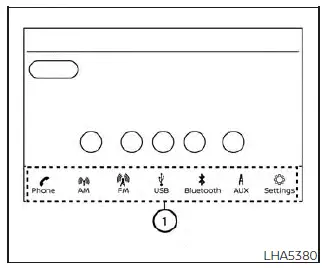
Many Nissan Kicks system functions can be accessed by touching items on the Launch Bar 1, which appears on most main menu screens. The Launch Bar may not appear on certain screens, such as keyboard entry screens, camera views, or special system displays.
Touch a key on the Launch Bar to open the corresponding menu screen.
The following menu items may be available on the Launch Bar:
- Phone, or the CarPlay or Android Auto icon when a compatible smartphone is connected by USB
- AM
- FM
- USB
- Bluetooth
- AUX
- Settings
For the best Nissan Kicks infotainment experience, adjust display brightness, audio volume, phone pairing, and navigation-related settings while parked before beginning your drive.