



WARNING
- Use a phone only after stopping your vehicle in a safe location. If phone use while driving is unavoidable, exercise extreme caution at all times so full attention can remain on vehicle operation.
- If you cannot devote full attention to driving while talking on the phone, pull off the road to a safe place and stop the Nissan Kicks before continuing the call.
CAUTION
To help prevent discharge of the vehicle battery, use the phone system after starting the engine.
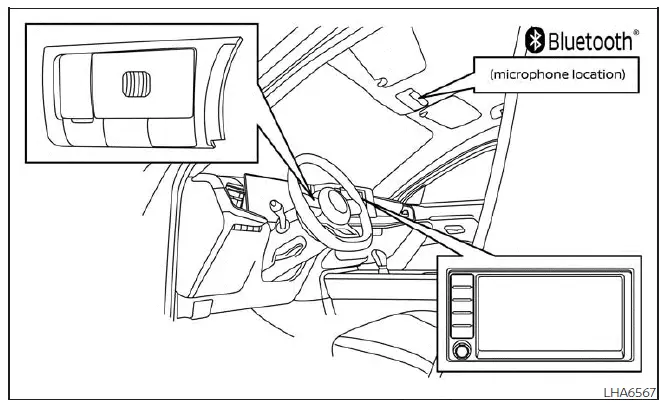
Your Nissan Kicks is equipped with the Bluetooth Hands-Free Phone System. If you have a compatible Bluetooth-enabled cellular phone, you can create a wireless connection between your phone and the in-vehicle phone module. With Bluetooth wireless technology, calls can be made or received through the vehicle system while your phone remains inside the cabin.
After a cellular phone has been paired with the in-vehicle phone module, the same connection procedure does not need to be repeated each time.
When the ignition switch is placed in the ACC or ON position, the Nissan Kicks can automatically reconnect to a previously paired phone if that phone is turned on, Bluetooth is enabled, and the device is inside the vehicle.
NOTE:
Some devices may ask the user to approve or accept connections from other Bluetooth devices before automatic reconnection is allowed.
If your phone does not connect automatically to the system, refer to the phone owner's manual for device-specific Bluetooth settings and connection instructions.
Up to six different Bluetooth cellular phones can be paired with the in-vehicle phone module. However, only one cellular phone can be used for a call at any given time.
Before using the Nissan Kicks Bluetooth Hands-Free Phone System, review the following points.
- Set up the wireless connection between a compatible cellular phone and the in-vehicle phone module before using the hands-free phone system.
- Some Bluetooth-enabled cellular phones may not be recognized or may not operate correctly with every
function.
Please visit www.nissanusa.com/ bluetooth or www.nissan.ca/bluetooth for a recommended phone list and connection instructions.
- You may not be able to use hands-free phone operation under the following conditions:
The Nissan Kicks is outside the cellular service coverage area.
The vehicle is in a location where cellular signal reception is weak or blocked, such as inside a tunnel, in an underground parking garage, near tall buildings, or in mountainous terrain.
The cellular phone is locked and cannot be used for dialing.
- When radio wave conditions are poor or cabin noise is high, it may be difficult to hear the other person clearly during a call.
- Do not place the cellular phone in an area surrounded by metal or far away from the in-vehicle phone module. Poor placement can reduce voice quality or interrupt the wireless connection.
- While a cellular phone is connected through Bluetooth wireless communication, the phone battery may
discharge more quickly than usual.
The Bluetooth Hands-Free Phone System does not charge cellular phones.
- Some cellular phones or portable electronic devices may cause interference or a buzzing sound through the Nissan Kicks audio speakers. Moving the device to another location inside the vehicle may reduce or eliminate the noise.
- For information about call charges, phone antenna operation, phone body handling, and device-specific precautions, refer to the cellular phone owner's manual.
- Regulatory information
- Using the system
- Indicators
- Voice commands
- Phone display screen
- Text messaging
- Bluetooth connections screen
Regulatory information Nissan Kicks 2025
Legal Notice:
1. Microsoft (WMA)
This product is protected by certain intellectual property rights owned by Microsoft Corporation and by third parties.
The use or distribution of this technology outside this product is not permitted without a license from Microsoft, an authorized Microsoft subsidiary, or the relevant third-party rights holders.
Microsoft, Windows, and Windows Media are registered trademarks and trademarks in the United States of America and other countries of Microsoft Corporation of the USA.
2. Apple (Made for iPod)
Use of the Made for Apple badge means that an accessory has been designed specifically to connect to the Apple product or products identified by the badge, and that the developer has certified it to meet Apple performance standards.
Apple is not responsible for the operation of this device or for its compliance with safety and regulatory standards. When used with the Nissan Kicks audio system, the actual performance may depend on the connected Apple device, cable condition, and software version.
Please note that using this accessory with an Apple product may affect wireless performance.
Credit Lines
Apple, iPod touch, iPhone, and Lightning are trademarks of Apple Inc., registered in the U.S. and other countries.
3. FCC Notice:
For USA:
This device complies with Part 15 of the FCC Rules. Operation is subject to the following two conditions: (1) This device may not cause harmful interference, and (2) this device must accept any interference received, including interference that may cause undesired operation.
NOTE:
Changes or modifications not expressly approved by the party responsible for compliance could void the user's authority to operate the equipment.
For Canada:
This device contains licence-exempt transmitter(s)/receiver(s) that comply with Innovation, Science and Economic Development Canada's licence-exempt RSS(s). Operation is subject to the following two conditions: (1) This device may not cause interference. (2) This device must accept any interference, including interference that may cause undesired operation of the device.
 BLUETOOTH is a
trademark owned by
Bluetooth SIG, Inc.
BLUETOOTH is a
trademark owned by
Bluetooth SIG, Inc.
and licensed to Panasonic.
Using the system Nissan Kicks P16
The system allows hands-free operation of the Bluetooth Hands-Free Phone System in the Nissan Kicks, helping the driver manage supported phone functions through voice commands and steering wheel controls.
When the vehicle is moving, some commands may be unavailable so that full attention can remain on safe vehicle operation.
Initialization
When the ignition switch is placed in the ON position, NISSAN Voice Recognition begins initializing. This process
takes a few seconds. If the
 button is pressed before initialization is complete, the system will announce
"There is no phone connected" and will not respond to voice commands.
button is pressed before initialization is complete, the system will announce
"There is no phone connected" and will not respond to voice commands.
Operating tips
To improve the performance of the NISSAN Voice Recognition System in the Nissan Kicks, follow these guidelines:
- Keep the cabin as quiet as possible. Point air vents away from the microphone and close the windows to reduce traffic noise, wind noise, vibration, and other background sounds that may prevent accurate voice recognition.
- Wait for the tone before speaking a command. If the command is spoken too early, the system may not receive it correctly.
- Begin speaking within 5 seconds after the tone sounds.
- Speak naturally and clearly, without long pauses between words.
- When calling contacts by name, say both the first and last name of the contact to help the system identify the correct entry.
Giving voice commands
To use NISSAN Voice Recognition, press the
 button located on the
steering
wheel for less than 1.5 seconds. After the tone sounds, speak your command clearly.
button located on the
steering
wheel for less than 1.5 seconds. After the tone sounds, speak your command clearly.
The command is picked up by the microphone, and the system provides voice feedback when the command is accepted.
- If a command is not recognized, the system announces, "Please say or select a command from the displayed list." Say the command exactly as prompted and repeat it in a clear, natural voice.
- To return to the previous command level, say "Go back" or "Correction" whenever the system is waiting for a response.
- You can cancel a command while the system is waiting for a response by saying "Cancel" or "Quit." The system
announces "Exit" and ends the Voice Recognition session. You can also press and hold the
 button on the
steering
wheel for 1.5 seconds at any time to close the session. When the Voice Recognition session is canceled, a
double beep confirms that the system has been exited.
button on the
steering
wheel for 1.5 seconds at any time to close the session. When the Voice Recognition session is canceled, a
double beep confirms that the system has been exited.
- To adjust the volume of voice feedback, press the (+ or -) volume control switches on the steering wheel while the system is speaking. The radio volume control knob can also be used.
Voice Prompt Interrupt
In most situations, you can interrupt voice feedback and speak the next command by pressing the
 button on the
steering
wheel. After interrupting the prompt, wait for the beep before speaking the next command.
button on the
steering
wheel. After interrupting the prompt, wait for the beep before speaking the next command.
One Shot Call (if so equipped)
To make the system faster to use, some second-level commands can be spoken together with the main menu command.
For example, press the
 button and
after
the tone say, "Call Redial". This allows the Nissan Kicks voice system to move directly to the requested phone
action when the command is recognized.
button and
after
the tone say, "Call Redial". This allows the Nissan Kicks voice system to move directly to the requested phone
action when the command is recognized.
Indicators Nissan Kicks 2025
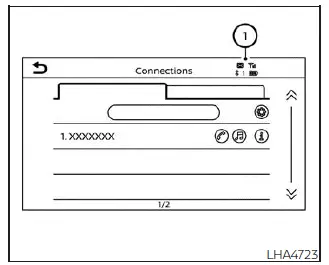
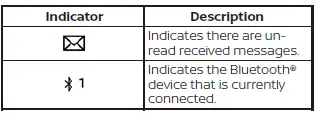
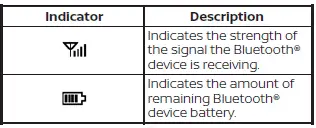
When a cellular phone is connected to the Nissan Kicks through Bluetooth wireless technology, phone and text messaging indicators are shown at the top of the screen. These indicators help confirm that the device is connected and that supported communication functions are available.
Control buttons
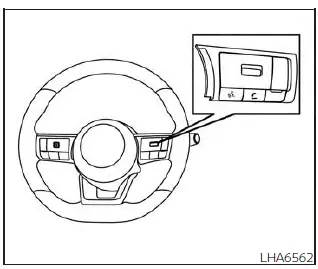
The control buttons for the Bluetooth Hands-Free Phone System are located on the steering wheel, allowing supported phone and voice functions to be operated without reaching for the center display.
 VOICE COMMAND BUTTON
Press and hold the
 button
for less than 1.5 seconds to begin a Voice Recognition session.
button
for less than 1.5 seconds to begin a Voice Recognition session.
To exit the Voice Recognition session,
press and hold the
 for
more than 1.5 seconds. For additional
information, see "Voice
prompt interrupt".
for
more than 1.5 seconds. For additional
information, see "Voice
prompt interrupt".
You can use the
 button to
interrupt system feedback and speak the next command immediately after the prompt interruption.
button to
interrupt system feedback and speak the next command immediately after the prompt interruption.
If an iPhone is connected to the Nissan Kicks, Siri can be accessed by pressing the
 button
for more than two
seconds.
button
for more than two
seconds.
 PHONE BUTTON
To answer an incoming call or end an active call, press the
 button.
To reject an incoming call, press and hold the
 button.
Connecting procedure
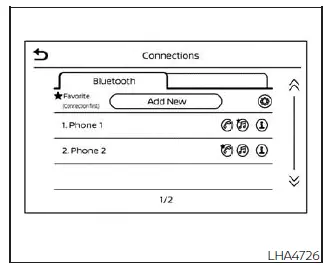
NOTE:
The connection procedure must be completed while the vehicle is stationary. If the Nissan Kicks begins moving during pairing, the procedure will be canceled.
To connect a phone to the Bluetooth Hands-Free Phone System:
Manual Connecting Procedure
1. Press the
 MENU button
on the
control
panel.
MENU button
on the
control
panel.
2. Touch the "Connections" key on the screen.
3. In the Bluetooth tab, touch the "Add New" key to begin connecting a phone.
4. When a compatible phone is detected, a message with a PIN appears on the screen.
5. Verify that the PIN shown on the Nissan Kicks display matches the PIN on the phone, then accept the connection.
6. To open the Bluetooth settings menu,
touch the "
 "
key on the Connections
screen. The following options are
available:
"
key on the Connections
screen. The following options are
available:

NOTE:
Some cellular phones may ask you to approve specific permissions before all Bluetooth system features can be used.
During the pairing process, check the phone display for a request to allow phonebook access.
Allowing phonebook access permits contacts to be downloaded to the Nissan Kicks Bluetooth system.
A message may appear on the cellular phone stating that the Bluetooth system would like to access contacts and call history. Select "Allow" or "Yes" to grant this permission and enable smoother hands-free operation.
Automatic Connecting Procedure
If no phone is connected to the system,
press and hold the
 button on the
steering wheel for less than 1.5 seconds.
button on the
steering wheel for less than 1.5 seconds.
After the prompt, say "Add Phone". The system will announce that it is transferring to the add phone settings menu, then the pairing procedure will begin. When a compatible phone is found, a PIN message appears on the screen. Complete the connection from the Bluetooth phone to finish pairing with the Nissan Kicks system. For additional information, see "Bluetooth connections screen".
Voice commands Nissan Kicks Owner's Manual
Voice commands can be used to operate the Bluetooth Hands-Free Phone System in the Nissan Kicks, allowing supported phone functions to be controlled without handling the device directly.
Press and hold the
 button for less
than 1.5 seconds to open the phone
command menu. The available commands
include:
button for less
than 1.5 seconds to open the phone
command menu. The available commands
include:
- Call <name>
- Dial <number>
- Recent Calls
- Read/Send Text (if so equipped)
- Siri (if so equipped)
- Voice Assistant (if so equipped)
- Phonebook
- Quick Dial
- Redial
- Select Phone
- Add Phone
- Call <name> Mobile
- Call <name> Home
- Call <name> Office
- Call <name> Main
- Call <name> Other
- Settings
"Call <name>"
Speak this command to call a contact stored in the phonebook of the connected phone.
Say "Call" followed by the contact name from the phonebook to begin a call. If the Nissan Kicks system does not clearly recognize the name, it will show a list of similar contacts. After the prompt, speak or touch the item number from the displayed list to place the call.
"Dial <number>"
Use this command to place a call by speaking the phone number aloud. After the prompt, say "Dial" followed by a 7 to 10 digit phone number. The system repeats the number for confirmation. Say "Dial" to make the call, or say "Correction" to enter the number again.
"Recent Calls"
The following commands are available under "Recent Calls" in the Nissan Kicks Bluetooth phone system:
- Incoming Calls
Speak this command to display the last 20 incoming calls received through the vehicle system. If the caller is saved in the phonebook, the contact name is shown. If not, the incoming phone number is displayed.When prompted, speak or touch the item number on the screen to place a call.
Touch the "Next" key to continue through the incoming call list.
- Outgoing Calls
Speak this command to display the last 20 outgoing calls made through the Nissan Kicks system. If the number belongs to a phonebook contact, the name is shown. Otherwise, the outgoing phone number appears on the display.When prompted, speak or touch the item number on the screen to call that entry.
Touch the "Next" key to move through the outgoing call list.
- Missed Calls
Speak this command to display the last 20 missed calls received by the vehicle system. If the missed call is from a saved phonebook contact, the contact name is displayed. Otherwise, the phone number of the missed call appears.When prompted, speak or touch the item number on the screen to return the call.
Using clear contact names and updated phonebook entries helps the Nissan Kicks recognize voice commands more accurately during hands-free calling.
Touch the "Next" key to continue moving through the list of missed calls.
"Read Text/Send Text" (if so equipped)
Speak this command to open the text messaging functions available through the Nissan Kicks Bluetooth Hands-Free Phone System. For additional information, see "Text messaging".
"Phonebook through voice command"
Say "Phonebook" to display quick access options for entries stored in the connected phonebook. The available commands depend on the phone number categories saved in the cellular device, such as mobile, home, office, main, or other. For more detailed information, refer to the cellular phone owner's manual.
The following commands are available:
- <Say a Contact Name>
- <Say a Contact Name> Main
- <Say a Contact Name> Home
- <Say a Contact Name> Mobile
- <Say a Contact Name> Office
- <Say a Contact Name> Other
"Quick dial"
Speak this command to open the Quick Dial menu. After the prompt, say the item number or select it from the displayed list to place a call quickly through the Nissan Kicks phone system.
"Redial"
Speak this command to call the most recently dialed number. After the prompt, say "Redial" to place a call to the last outgoing number.
The system will display "Redialing <name/ number>". If the outgoing number matches a phonebook entry, the contact name will be shown. If no matching entry is available, the number being redialed will appear instead.
"Select Phone"
Speak this command to open the Connections menu and choose a paired phone for use with the Nissan Kicks Bluetooth system. For additional information, see "Bluetooth connections screen".
"Add Phone"
Speak this command to open the Connections menu and begin pairing another compatible phone. For additional information, see "Bluetooth connections screen".
"Settings"
Speak this command to open the System Voice settings menu. The system exits Voice Recognition mode, and the available settings can then be changed by touching the desired option on the screen.
- Beep Only for Opening Prompt
Touch the "ON" key to illuminate the indicator light. When this setting is active, the system voice is turned off and only a tone sounds when the Bluetooth Hands-Free Phone System is activated. To restore the spoken system prompt, touch the "ON" key again and the indicator light will turn off. - Best Match List
When the Nissan Kicks system does not clearly recognize a phonebook name or spoken dial number, it can display a list of similar-sounding results.To turn this feature off, touch the "ON" key so the indicator light turns off. To enable it again, touch the "ON" key once more and the indicator light will turn on.
Phone display screen Nissan Kicks 2026
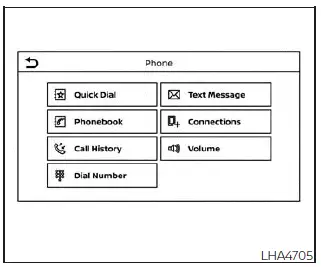
The Phone screen can be opened by pressing the
 button on the control
panel. This screen gives access to the main Bluetooth phone functions used for calling, call history, contacts,
messages, connections, and volume settings.
button on the control
panel. This screen gives access to the main Bluetooth phone functions used for calling, call history, contacts,
messages, connections, and volume settings.
The following options are displayed:
- Quick Dial
Displays the Quick Dial screen for fast access to saved numbers. - Phonebook
Displays the Phonebook screen with contacts downloaded from the connected phone. - Call History
Displays the Call History screen, including recent incoming, outgoing, and missed calls. - Dial Number
Displays the Dial Number screen for entering a phone number manually. - Text Message
Displays the received message screen when supported by the connected phone and vehicle equipment. - Connections
Displays the Connections screen for Bluetooth device management. - Volume
Displays the volume adjustment screen for phone-related audio settings.
Making a call
1. Press the
 button on the
Launch Bar.
button on the
Launch Bar.
The "Phone" screen will appear on the Nissan Kicks display.
2. Select one of the available options to place a call.
- Phonebook
To access the phonebook:
1. Press the
 button on the
steering
wheel or touch the "
button on the
steering
wheel or touch the "
 " key on the
launch bar.
" key on the
launch bar.
2. Touch the "Phonebook" key.
3. Choose the desired contact entry from the displayed list.
- Call History
Select a phonebook name or phone number from the recent incoming, outgoing, or missed calls tabs. Touch the name or number shown on the screen to start the call through the Nissan Kicks Bluetooth Hands-Free Phone System. - Dial Number
Enter the phone number manually using the keypad displayed on the screen.Touch the "OK" key on the screen to initiate the call.
During a call
While a call is active, the following options appear on the control panel display:
- Mute
Touch this key to mute or unmute the hands-free microphone. - Dial Number
Touch this key to enter digits during the phone call, such as when using automated phone menus. - Switch to Handset
Start the call using Bluetooth Hands-Free Phone and touch "Use Handset" on the screen when you want to continue the conversation directly on the cellular phone.
NOTE:
Some jurisdictions prohibit the use of cellular telephones while driving. Always follow local laws and keep full attention on operating the Nissan Kicks safely.
- Switch Call
This option is available only when a second call is active.
If supported by the phone, the Bluetooth Hands-Free Phone System allows call waiting. If a second call is
received while another call is already active, a message appears on the screen. Press the
 button on
the steering wheel or touch the "
button on
the steering wheel or touch the "
 Answer" key on the screen to accept the incoming call. Touch the "
 Decline" key
on the screen to reject the second call.
Decline" key
on the screen to reject the second call.
While a call is active, press the
 button
on the steering wheel to access additional voice options. Speak one of the following commands:
button
on the steering wheel to access additional voice options. Speak one of the following commands:
- "Send Digits"
Speak this command followed by the digits you want to enter during the call. - "Switch call"
Speak this command to hold the second call and return to the original call.
Receiving/Ending a call
When a call is received by the phone connected to the Nissan Kicks Bluetooth Hands-Free Phone System, call information appears on the control panel display.
To accept the incoming call, either:
- Press the
 button on the
steering
wheel, or
button on the
steering
wheel, or
- Touch the "
 Answer" key on
the
screen.
Answer" key on
the
screen.
To end or reject an incoming call, either:
- Press and hold the button on the steering wheel, or
- Touch the "Decline" key on the screen.
If the call cannot be answered immediately, touch the "Hold Call" key on the screen. The caller will hear the message: "I'm not able to take a call right now." The driver can then accept the call when ready or reject it from the screen.
Text messaging Nissan Kicks crossover
WARNING
- Laws in some jurisdictions may restrict
the use of "Text-to-Speech".
Check local regulations before using this feature in your Nissan Kicks.
- Laws in some jurisdictions may restrict the use of certain applications and features, including social networking, messaging, and texting. Always check local requirements before using these functions.
- Use the text messaging feature only
after stopping your vehicle in a safe
location whenever possible.
If the feature must be used while driving, use extreme caution and keep full attention on operating the Nissan Kicks.
- If you cannot give full attention to driving while using text messaging, pull off the road to a safe location and stop the vehicle before continuing.
NOTE:
This feature is automatically disabled if the connected device does not support the Message Access Profile (MAP). For details about MAP support and device-specific setup, refer to the phone owner's manual.
NOTE:
Many phones require special permission before text messaging can operate through Bluetooth. Check the phone screen during the pairing process and approve the requested access if you want messages to appear on the Nissan Kicks display.
On some phones, "Notifications" must be enabled in the phone's Bluetooth menu before text messages can be shown on the head unit. Text message integration requires MAP (Message Access Profile) support for receiving and sending messages. Some devices may not support every messaging function. Refer to www.nissanusa.com/bluetooth or www.nissan.ca/bluetooth for compatibility information, and also review the device owner's manual.
The system allows supported text messages to be sent and received through the Nissan Kicks vehicle interface, helping reduce the need to handle the phone directly.
The availability of text message functions depends on the connected cellular phone, its software, supported Bluetooth profiles, and the permissions granted during pairing.
When the cellular phone connected to the vehicle receives a text message, a notification appears on the control panel display.
To view the message, touch the "Read" key. Touch the "Ignore" key if you prefer to keep the message available for later review.
Text messaging can be accessed through the vehicle's Bluetooth Hands-Free Phone System or through the Nissan Kicks control panel, depending on equipment and phone compatibility.
Text messaging using Bluetooth Hands-Free Phone System (if so equipped)
Sending a text message (if so equipped)
1. Press and hold the
 button on
the
steering wheel for less than 1.5 seconds.
button on
the
steering wheel for less than 1.5 seconds.
2. Say "Send Text" after the tone.
3. The system will present a list of available commands to help select the text message recipient. Choose from the following:
- Phonebook
- Quick Dial
- Incoming Calls
- Outgoing Calls
- Missed Calls
- Dial
4. After the recipient is selected, the system asks which message should be sent.
Nine predefined messages are available for quick replies through the Nissan Kicks Bluetooth system.
To select one of the predefined messages, speak one of the following after the tone:
- "Driving, can't text"
- "Call me"
- "On my way"
- "Running late"
- "Okay"
- "Yes"
- "No"
- "Where are you?"
- "When?"
Reading a received text message
1. Press and hold the
 button on
the
steering wheel for less than 1.5 seconds.
button on
the
steering wheel for less than 1.5 seconds.
2. After the tone, say "Read Text".
The Nissan Kicks display will show a list of up to 20 messages, including the sender and the delivery time. Touch the "Next" key on the screen to continue viewing additional messages in the list.
To open a text message, press the
 button on the steering wheel and
say the item number shown on the screen.
button on the steering wheel and
say the item number shown on the screen.
The following options will be available:
- Play
Speak this command to have the Nissan Kicks system read the message aloud. - Reply
Speak this command to send a text message response to the sender of the received message. - Call
Speak this command to call the sender directly through the Bluetooth Hands-Free Phone System. - Previous
Speak this command to move to the previous text message, if one is available. - Next
Speak this command to move to the next text message, if one is available.
Siri Eyes Free (if so equipped)
If the connected phone supports Siri, Siri Eyes Free can also be used to create custom messages that are sent through the phone. This allows the Nissan Kicks driver to respond by voice when the feature is available and properly configured.
NOTE:
Text messages are displayed only when the vehicle speed is less than 5 mph (8 km/h).
NOTE:
For Apple iPhones, text messages can only be sent through Siri.
Text messaging using the control panel
Display received message list
1. Press the
 button on the
control
panel.
button on the
control
panel.
2. Touch the "Text Message" key on the screen.
3. Touch an item from the list to read the message or prepare a reply.
Up to 100 messages can be stored in the message list, depending on the connected phone and supported Bluetooth functions.
Received message screen
Touching the "Read" key on an incoming message notification, or selecting a message from the message list, opens the message details on the Nissan Kicks display.
Available actions:
- Prev.
Touch this key to view the previous message. - Next
Touch this key to view the next message. - Play/Stop
Touch the "Play" key to have the hands-free phone system read the received message aloud. Touch the "Stop" key to stop the reading. - Call
If the sender is saved in the phonebook, touch the "Call" key to place a call to that sender. - Reply
A reply message can be selected from the predefined list when the connected phone supports this function.
Sending a text message (if so equipped)
This function may not be supported by every cellular phone. Availability depends on the phone model, software version, Bluetooth profile support, and permissions allowed during pairing.
1. Press the
 button on the
control
panel.
button on the
control
panel.
2. Touch the "Text Message" key on the screen.
3. Touch the "Create Message" key on the screen.
The following items are available:

Bluetooth connections screen Nissan Kicks
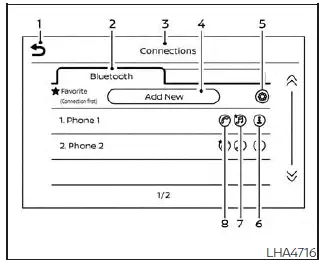
- "
 " (back) key
- Bluetooth tab
- Connections screen
- "Add New" key
- "
 " (settings) key
- "
 " (info) key
- "
 " (Bluetooth Audio
connection) key
" (Bluetooth Audio
connection) key
- "
 " (Bluetooth Hands-Free
Phone
System connection) key
" (Bluetooth Hands-Free
Phone
System connection) key
Open the Connections screen to adjust Bluetooth settings, manage paired devices, and view connection information for phones or audio devices used in the Nissan Kicks.
To access the Connections screen, press
the
 MENU button on the control
panel.
MENU button on the control
panel.
Touch the "Connections" key on the screen, then select the Bluetooth tab.
The paired phone will be added to the device list on the Bluetooth connections screen.
Touching another device name in the list will switch the active connected device.
"
 " (back) key
Touch the "
 " key to return to
the
previous screen.
" key to return to
the
previous screen.
Connecting Bluetooth
For more information about connecting a cellular phone or another compatible device to the Bluetooth Hands-Free Phone System, see "Connecting procedure".
NOTE:
Some cellular phones or electronic devices may create interference or a buzzing sound through the audio speakers. Moving the device to another position inside the Nissan Kicks may reduce or remove the noise.
Bluetooth tab
This tab can display up to six Bluetooth devices. If six devices have already been registered, one device must be deleted before another device can be added to the Nissan Kicks Bluetooth system.
"Add New" key
Touch the "Add New" key on the screen to pair a new Bluetooth device. For the complete procedure, see "Connecting procedure".
"
 " (Bluetooth settings) key
Touch the "
 " key on the screen
to
display a list of Bluetooth-related options.
" key on the screen
to
display a list of Bluetooth-related options.
- Bluetooth
Touch this key to turn the Bluetooth connection on or off. - Favorite (Connection first)
Touch this key to choose which device should connect first when multiple paired devices are available in the vehicle.Turn the "
 " key on or off to
make the
device a favorite phone connection.
" key on or off to
make the
device a favorite phone connection.
Turn the "
 " key on or off to
make the
device a favorite Bluetooth audio connection.
" key on or off to
make the
device a favorite Bluetooth audio connection.
- Pin
Touch this key to customize the Bluetooth PIN code.Enter a four-digit number, then touch the "OK" key. The new PIN will be saved for future pairing.
"
 " (info) key
Touch the "
 " key on the screen
to
view information about the cellular phone or delete the device from the list.
" key on the screen
to
view information about the cellular phone or delete the device from the list.
Touch the "Delete" key to remove a paired device, then select "Yes" when the confirmation message appears.
"
 " (Bluetooth Hands-Free
Phone System connection) key
A list of connected devices appears on the screen. Touch the "
 " key
next to
the device name to connect it to the Hands-Free Phone System. If the phone is marked as a favorite, a star will
appear on the icon. Touch the key again to disconnect the device. The device will remain saved in the list.
" key
next to
the device name to connect it to the Hands-Free Phone System. If the phone is marked as a favorite, a star will
appear on the icon. Touch the key again to disconnect the device. The device will remain saved in the list.
"
 " (Bluetooth Audio
connection) key
" (Bluetooth Audio
connection) key
A list of connected devices appears on the screen. Touch the "
 " key
next to
the device name to connect it to Bluetooth Audio. If the device is set as a favorite, a star will be shown on
the icon.
" key
next to
the device name to connect it to Bluetooth Audio. If the device is set as a favorite, a star will be shown on
the icon.
Touch the key again to disconnect the device.
The device is disconnected from the active function but remains stored in the Nissan Kicks Bluetooth device list.
Phone and text message settings
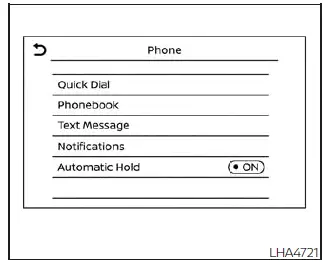
Bluetooth Hands-Free Phone System settings can be adjusted according to the user's preference. To open the
"Phone" settings menu, press
the
 MENU button on
the control panel. Touch the "Settings" key, then touch the "Phone" key.
MENU button on
the control panel. Touch the "Settings" key, then touch the "Phone" key.
The following options are available:
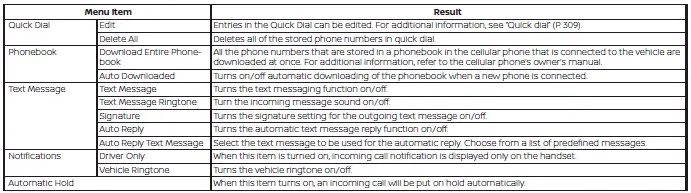
Volume & beeps
Several volume and sound notification settings can be customized for phone and messaging operation.
Volume & Beeps
The Volume & Beeps screen can be opened by pressing the
 MENU button on the
control panel, touching the "Settings" key on the screen, and selecting "Volume &
Beeps". To adjust each setting, touch the "-" or "+" keys on the screen.
MENU button on the
control panel, touching the "Settings" key on the screen, and selecting "Volume &
Beeps". To adjust each setting, touch the "-" or "+" keys on the screen.
The available settings are:
- Ringtone
Adjusts the volume level of the ringtone for incoming calls. - Outgoing Call
Adjusts the volume level heard during outgoing calls. - Voice Prompt Vol.
Adjusts the volume level of the system voice prompts. - Text-to-speech Vol.
Adjusts the volume of the voice used to read text messages aloud. - Button Beeps
Turns button beep sounds and the warning tone for prohibited operations on or off.
Volume Settings
The Volume Settings screen can be opened by pressing the
 button on the
control
panel, then touching the "Volume" key on
the screen. To adjust the available options, use the "-" and "+" keys on the screen.
button on the
control
panel, then touching the "Volume" key on
the screen. To adjust the available options, use the "-" and "+" keys on the screen.
The available settings are:
- Ringtone
Adjusts the volume level of the incoming call ringtone. - Outgoing Call
Adjusts the volume level for outgoing calls made through the Nissan Kicks Bluetooth Hands-Free Phone System.
iPod/iPhone
"Made for iPod", "Made for iPhone", and "Made for iPad" mean that an electronic accessory has been designed specifically to connect to iPod, iPhone, or iPad, respectively, and has been certified by the developer to meet Apple performance standards.
Apple is not responsible for the operation of this device or for its compliance with safety and regulatory standards.
Use of this accessory with iPod, iPhone, or iPad may affect wireless performance, depending on device condition, software version, and connection environment inside the Nissan Kicks.
iPad, iPhone, iPod classic, iPod nano, iPod shuffle, and iPod touch are trademarks of Apple Inc., registered in the U.S. and other countries. Lightning is a trademark of Apple Inc.